Quick answer: To record Microsoft Teams in browser tabs without a bot, join the meeting in Chrome (choose Continue on this browser), then click the Acta Chrome extension icon and press Start recording, or press Alt+Shift+R. The first time, allow microphone access. Acta saves the recording when you leave and writes a transcript, summary and action items, with no bot in the meeting.
Most of my Teams calls with other companies start the same way. An invite from someone's Outlook, a "Join the meeting now" link, and a page asking whether I want the Teams app or the browser. I pick the browser. I'm a guest in their organization, and I'd rather not sign the Teams app in and out of someone else's tenant for one 30-minute call.
The downside is that guests are the people with the fewest recording options. Here's what Teams lets you do from a browser tab, what it doesn't, and how to get proper notes anyway with the Acta Chrome extension.
Can you record Microsoft Teams in browser tabs with Teams' own recorder?
Sometimes, and rarely if you're a guest. Microsoft's page on why you can't record a meeting in Teams lists the reasons the Record button is missing or locked. As of November 2026:
- Guests can't record meetings. If you joined another company's meeting from a link, this is usually you.
- The organizer's "Who can record and transcribe" option may be set to organizers and co-organizers, or to no one.
- Attendees who aren't presenters don't get the button.
- The IT admin's policy may not allow recording, and both organizer and recorder need a qualifying license.
Even when Teams does record, the recording lives with the organizer's side, not with you. If you're inside your own company and the button works, our walkthrough of how to record a Teams meeting with the built-in recorder is the simplest path.
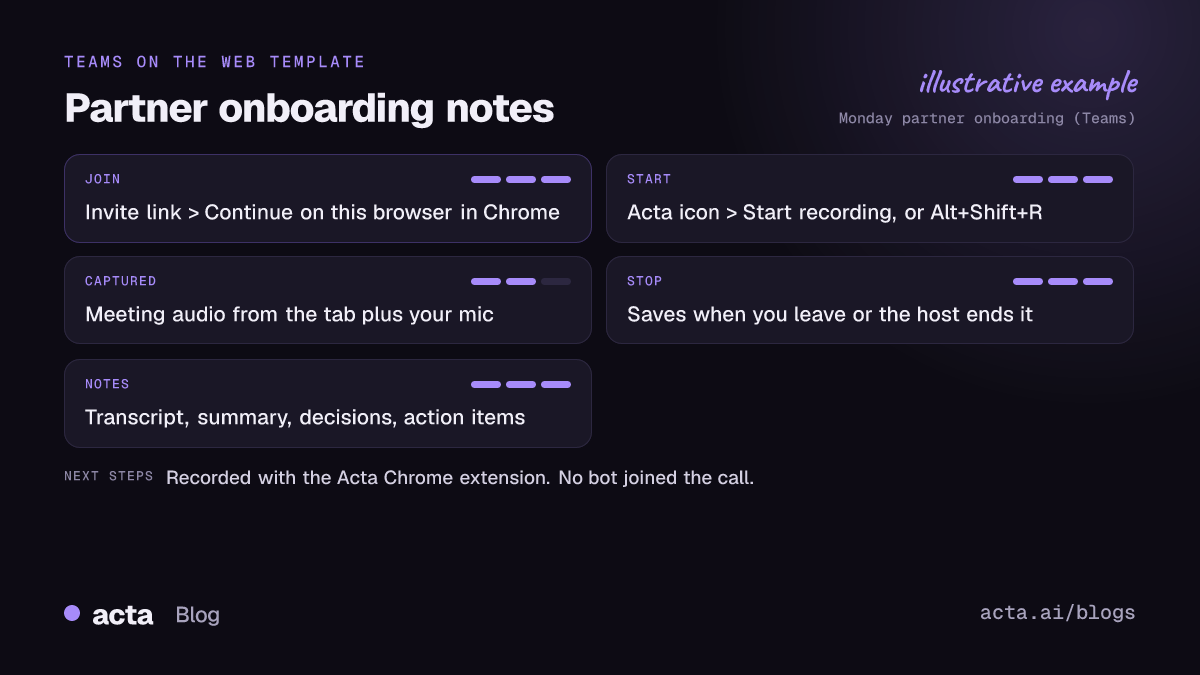
How does guest access work when you join Teams on the web?
Microsoft's guide to joining a Teams meeting without an account is short: open the invite, select the meeting link, choose Continue on this browser, enter your name and join. Nothing to install. Teams on the web works in Microsoft Edge and Google Chrome (the Acta extension needs Chrome specifically, version 116 or newer).
Two things from that page are worth knowing before an important call:
- Verification. Some meetings don't let unverified people in. You may have to enter a one-time passcode sent to your email, or create a Teams account.
- The lobby. If nobody admits you within 30 minutes, you're removed from the lobby and have to rejoin.
Neither affects recording, but both can eat the first five minutes of a call if you're not ready for them. For anything that matters (a pitch, a kickoff with a new partner), I open the link a couple of minutes early, get the passcode email out of the way, and sit in the lobby with the extension already pinned.
Why bother with the browser at all if you have the Teams app? If you work with several companies, the app tends to fight you: it wants to sign in to each organization, or it opens in your own work account and gets confused. The browser just takes your name and lets you in. (It also keeps the other company's chats out of your Teams sidebar.)
What does the Acta Chrome extension record in a Teams web meeting?
The extension records meetings from your browser, so no bot joins the call and nobody sees a notetaker in the participant list. It works with Google Meet, Microsoft Teams in the browser and the Zoom web client.
In a Teams tab it captures:
- The meeting audio from the tab, so everyone else's voices are in the transcript.
- Your microphone, so your own voice is in there too.
- Speaker names, picked up from the meeting, so the transcript shows who said what.
So if you need to transcribe a Teams meeting you only joined from a link, this is the route that doesn't depend on anyone else's settings. After the call you get the usual Acta notes: transcript with speakers, summary, decisions, action items with owners and a follow-up email draft. It's the same output as the Acta bot, minus the extra participant.
How do you set up the extension before your first Teams call?
- Go to the Acta Chrome extension page and add it to Chrome (it opens the Chrome Web Store listing).
- A welcome page opens. Click Login and sign in to Acta. This happens once; the extension stays logged in.
- Click the puzzle-piece menu in Chrome's toolbar and pin Acta, so the icon is always visible.
Honestly, step 3 is the one people skip and regret. Without the pin, you're fishing through the extensions menu while the client is introducing themselves.
How do you record Microsoft Teams in browser meetings, step by step?
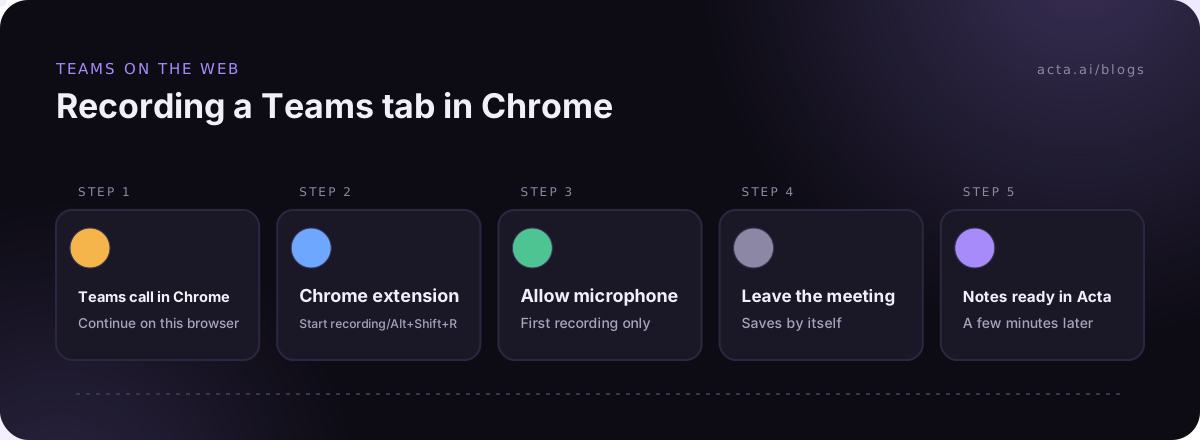
1. Join the call in a Chrome tab
Open the invite link and choose Continue on this browser. Get through the lobby and into the meeting itself. The Acta window only appears once you're in a Teams call or meeting; it doesn't show on Teams chat or other pages.
2. Start recording
Click the Acta icon in the toolbar and press Start recording, or press Alt+Shift+R from the meeting tab.
3. Allow the microphone (first time only)
The first time, Acta asks for microphone access. Click Allow. Recording then starts by itself. If Chrome asks you to share the tab, click Share and keep "Also share tab audio" on. Without the meeting sound Acta doesn't start, and it tells you what to change.
4. Check the small Acta window
A small Acta window in the meeting shows the timer and who is speaking. Glance at it once when the first other person talks. If their name shows up, you're fine.
5. Leave the meeting
Recording stops and saves when you leave or the host ends the meeting. You can also click Stop & save.
Where do the notes show up after a Teams web meeting?
Open them from Open this meeting in Acta in the window, the Meeting saved to Acta notification, or Last meeting in the extension popup. The transcript and summary appear on the meeting's page once Acta has processed it, usually a few minutes later. There's no live transcript during the call.
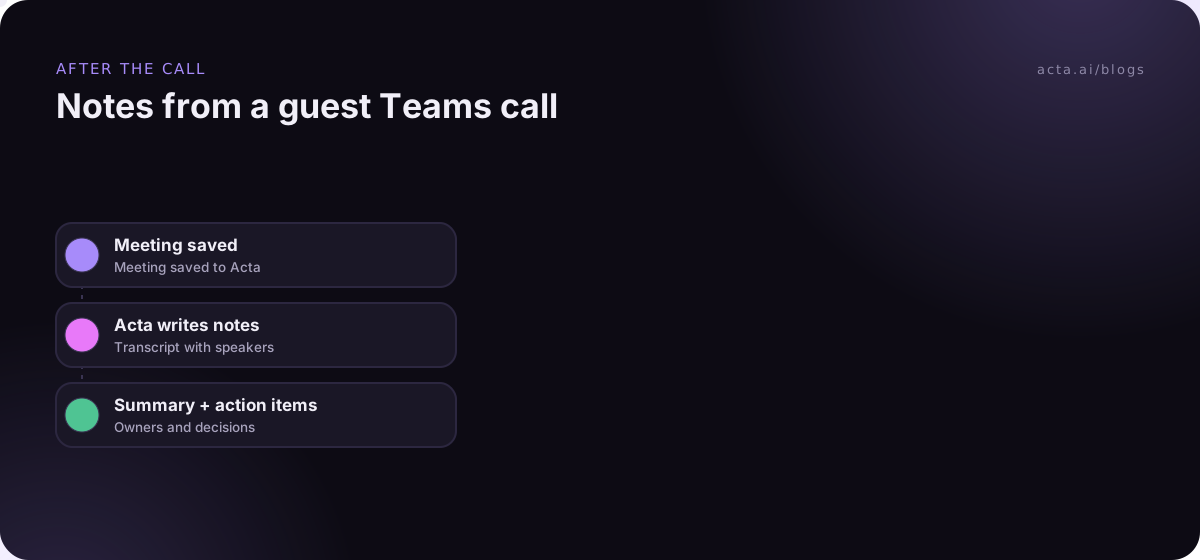
The recording uploads while the meeting runs. If Acta can't be reached, it's kept in Downloads/Acta Recordings on your computer instead, so a flaky connection doesn't cost you the call.
Once a few calls are in, OneChat lets you ask across them ("what did their IT lead say about SSO?") instead of scrolling through transcripts.
What can go wrong when you record Microsoft Teams in browser tabs?
A short list, in rough order of how often I've seen each:
- The Teams app grabbed the link. If the desktop app is installed, the invite may open there instead of in Chrome. The extension records the browser version, so pick Continue on this browser.
- You closed the tab to "end" the call. That's fine, actually: closing the meeting tab stops the recording and saves it. Reloading the page or presenting your screen doesn't stop it.
- The call ended but the timer keeps going. If a platform changes its buttons, Acta keeps recording rather than stopping by mistake. Click Stop & save yourself.
- Edge instead of Chrome. Teams on the web runs in Edge too, but the extension is for Chrome.
- The trial ended. On the free trial the window shows the days left. After the 15-day trial, Start recording is turned off until you upgrade; a recording already running is never stopped.
The Chrome extension help guide has the full troubleshooting section. For a wider look at which method suits which meeting, see ways to record a meeting with Acta.
When is the desktop app the better choice?
If you join Teams in the Teams desktop app (work account or Teams free), use the Acta desktop app. It runs on Windows 10 (1903 or later), Windows 11 and macOS 14.2 or later, notices the Teams meeting by itself and offers Record on this device. It records the meeting's sound and your microphone, never your screen. Our guide to recording a Teams meeting without a bot in the desktop app goes through it, including the Windows and Mac permissions.
Plenty of people end up with both: the extension for guest calls in Chrome, the desktop app for their own company's Teams meetings.
Do you have to tell people you're recording?
Yes. Bot-free does not mean secret. There's no bot and no Teams recording banner for a recording Teams isn't making, so the only notice people get is the one you give. Tell people you're recording and get consent where the law requires it. Say it out loud at the start and drop a line in the Teams chat.
As a Teams guest, there's an extra reason to ask: it's their meeting, and their company may have its own rules. Our guide on whether it's legal to record meetings with AI and what to tell participants covers the legal side by region.
Frequently asked questions
Do I need a Microsoft account to record a Teams meeting in the browser?
Not for joining: Teams lets guests join from the browser without an account, unless the meeting requires verification. You do need an Acta account to sign in to the extension.
Does anyone in the meeting see Acta?
No bot joins and no extra participant appears. The small Acta window with the timer and speaker is only on your screen.
Does it record video or my screen?
Acta's output is the transcript, summary and action items built from the meeting audio and your microphone. If you need the video itself, that's Teams' own recording, on the organizer's terms.
Can I change the Alt+Shift+R shortcut?
Yes, at chrome://extensions/shortcuts.
Is the extension free?
Installing it is free, and it's included in every Acta plan, so you can use it during the 15-day free trial with unlimited recordings and transcriptions. After the trial, recording needs Pro. Details are on the pricing page.
Next time a Teams invite lands from another company, add the Acta Chrome extension, pin it, and press Alt+Shift+R once you're in.