An AI meeting notes template is a list of sections, each with an instruction and a format, that an AI notetaker fills from a meeting transcript. Unlike a static document template, you never type into it: the AI reads what was said and writes each section for you, and a well-built one leaves a section marked "Not discussed" instead of inventing an answer.
AI at Work 11 min read
AI Meeting Notes Template: What It Is and How the AI Fills It In
What an AI meeting notes template is, how it differs from a doc template, how the AI fills sections from a transcript, and when to pick a built-in or custom one.
By Sarma BKP, Founder & CEO, Acta · Updated
This explainer covers how these templates work, where they beat a plain AI summary, what the big meeting platforms offer, and when a built-in template is enough versus when you should write your own. It's written for people who already use an AI notetaker and want more structured, more reliable notes. If you mostly need a transcript for reference, you don't need templates at all.
Key takeaways
- A static template is a blank form for a person; an AI meeting notes template is a set of instructions for a model. Write it like instructions.
- Each section needs three things: a title, a one-sentence instruction ("List every task agreed, with owner and due date"), and a format.
- "Not discussed" and "Unassigned" are signs the template is working, not failing. A model that always fills every section is guessing somewhere.
- Start with a built-in template for a common framework (MEDDPICC, PRD draft, project status); write a custom one when your team's format is fixed and specific.
Table of contents
- An AI meeting notes template is instructions, not a blank form
- The AI fills each section from what was said
- Not discussed beats a confident guess
- Static templates and AI templates solve different problems
- Meeting platforms now ship their own summary templates
- Use a built-in template first, a custom one when your format is fixed
- Build an AI meeting notes template in Acta
- Frequently asked questions
- Choose the right template for each meeting
An AI meeting notes template is instructions, not a blank form
A traditional meeting notes template is a document with headings: Attendees, Agenda, Discussion, Action items. Someone in the meeting types under each heading while trying to listen. The template's job is to remind that person what to capture.
An AI meeting notes template has a different reader. The headings are still there, but under each one you write what the AI should put there and in what shape. "Action items" becomes "Every task someone agreed to do, with the owner and due date as stated. Format: checklist." The model reads the transcript and follows the instruction, section by section. You stop writing notes and start writing the brief for the notes.
That shift changes what makes a template good. A heading like "Discussion" is fine on a paper form because a human decides what matters. Given to a model, "Discussion" produces a long, flat summary of everything. The more specific the instruction, the more useful the section: "Objections the customer raised, in their words" will give you something you can act on, while "Customer feedback" mostly won't.
The AI fills each section from what was said
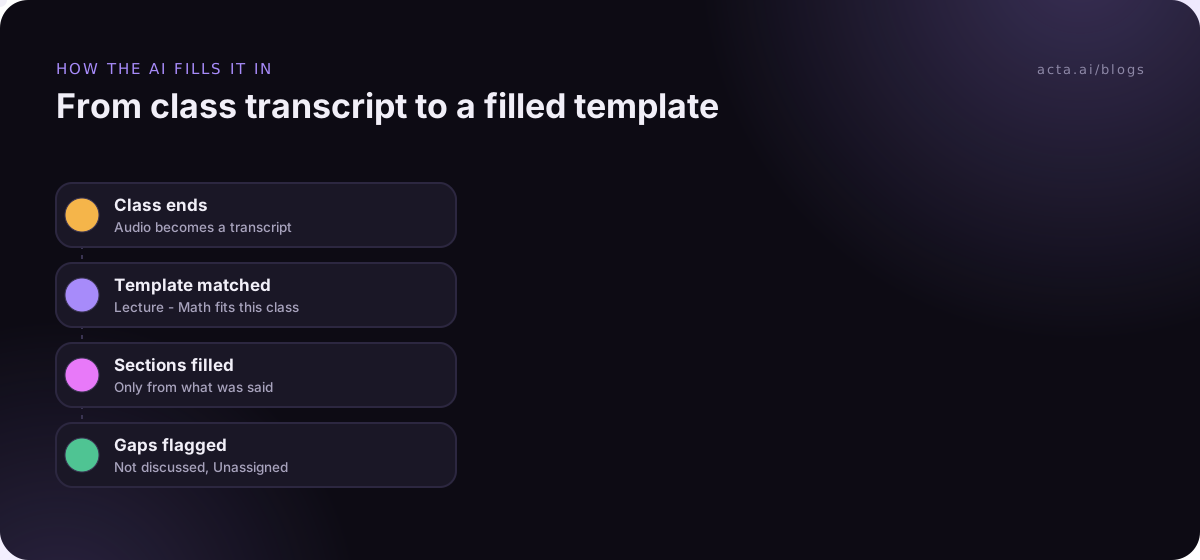
From the user's side, the process is simple. The meeting is captured, either by a bot that joins or by a recorder on your own computer. The audio becomes a transcript with speaker names. The template is then applied: for each section, the AI looks for the parts of the conversation that answer that section's instruction and writes them up in the chosen format.
Three things decide the quality of what comes back:
- The transcript. Wrong speaker names produce wrong owners on tasks. Crosstalk and bad microphones produce gaps. Our piece on AI meeting notes accuracy covers what affects this and how to test it.
- The instruction. A section that asks for something specific gets specific output. A section that asks for judgement ("Is this deal healthy?") gets judgement, which is where models are least reliable.
- The format. A checklist forces the AI to look for an owner and date for each task. A table with named columns forces it to fill each column or leave it empty. Formats are a quiet way of making the model more careful.
Good templates also ask for evidence. A section that says "with a short quote" makes it easy to check the AI's work, because you can search the transcript for the quote. If a claim in the notes has no quote behind it, that's where you look first.
Not discussed beats a confident guess
Language models are good at producing fluent text, and fluency is the problem. Researchers have documented for years that summarisation models can generate content that isn't supported by the source; the survey of hallucination in natural language generation by Ji and colleagues has a full section on abstractive summarisation. In meeting notes, this shows up as a due date nobody gave, an owner assigned because they spoke last, or a decision that was really just an idea.
A template makes this risk sharper, because every section is a slot the model feels it should fill. Ask for "Budget" on a call where nobody mentioned money, and a careless system will find something budget-shaped to write. The fix is a rule: if the meeting didn't cover it, say so. In Acta, every template report writes "Not discussed" for a section the meeting didn't cover, "Unassigned" for a task with no owner, and marks the whole report not relevant if the meeting isn't the kind the template was built for.
In practice, those gaps are some of the most useful lines in the notes. "Decision process: Not discussed" on a sales call tells the rep exactly what to ask next time. "Owner: Unassigned" on a task tells the team lead someone needs to pick it up today. For more on spotting and reducing made-up content, see reducing hallucinations in AI meeting summaries.
Static templates and AI templates solve different problems
It's tempting to think an AI template simply replaces the doc template. It mostly does, but they're built for different jobs, and some teams keep both.
| Question | Static doc template | AI meeting notes template |
|---|---|---|
| Who fills it in? | A person, during or after the meeting | The AI, from the transcript |
| What you write | Headings and prompts for a note-taker | Section instructions and formats for a model |
| Missing information | Left blank or forgotten | Marked "Not discussed" (in a good tool) |
| Consistency | Depends on who took notes | Same sections and order every time |
| Best for | Agendas, live decisions, sensitive meetings not captured | Recurring meetings you already capture |
A static template is still the right tool for an agenda sent before the meeting, and for meetings you've decided not to capture at all. For anything you do capture, the AI version saves the note-taker's attention for the conversation.
Meeting platforms now ship their own summary templates
As of November 2026, the main meeting platforms all offer some form of AI notes, with different amounts of control over structure. Check each vendor's page before relying on these details, because plans and features change.
- Google Meet. Google's help page for Take notes for me says it needs an eligible Google Workspace subscription; the notes document is saved to the organiser's Drive and attached to the Calendar event.
- Microsoft Teams. Microsoft's meeting recap support page describes AI notes and suggested tasks after a transcribed meeting; licensing depends on your organisation's setup.
- Zoom. Zoom community posts describe pre-built AI Companion summary templates for common meeting types, and say fully custom templates need a separate Custom AI Companion add-on.
The platform tools are convenient if your whole company lives on one platform. They're less helpful when sales calls happen on Zoom, internal meetings on Teams and client calls on Meet, because each tool keeps its own notes and its own formats. A notetaker that sits across platforms lets one template apply to every meeting of a type, wherever it happened.
Use a built-in template first, a custom one when your format is fixed
Built-in templates are written by people who know the framework. Acta has 40 of them, grouped by role on the templates page: MEDDPICC deal report, SPICED, BANT qualification, PRD draft, Project status, Lecture notes and more. The templates by role article lists them all. If your meeting follows a known framework, start there. Turn it on, read three or four reports, and only then decide whether it needs changing.
Write a custom template when one of these is true:
- Your team has its own format that people already expect, such as a deal review with your own stage names.
- The meeting type isn't covered by a built-in, such as a weekly vendor call or a maths class.
- A built-in is close but has sections you never use and misses one you always need. Use Customize to copy it rather than starting blank.
The pillar guide on how to build a custom meeting notes template walks through section design in detail. The short version: five to seven sections, specific instructions, and the right format for each.
Build an AI meeting notes template in Acta
Custom templates are available on Acta's paid plans; the 15-day free trial includes the built-in templates but shows an upgrade prompt for the custom builder. Full steps with screenshots are in the custom templates help article.
- Open Templates in the dashboard sidebar, choose "My templates" and click "+ Create template".
- Enter a "Template name", such as "Lecture - Math".
- Under "Start from", choose "Describe it". In "What should this report do?", describe the meeting and what you need, then click "Draft sections". Acta drafts three to seven sections.
- Check each section's title, instruction and format (Paragraph, Bullets, Checklist or Table with up to six named columns). Reorder, remove or add sections; the limit is 12.
- Add optional extra instructions, for example "Write formulas in plain text".
- Under "When should Acta use it?", choose "Only matching meetings" so it runs only on meetings that fit the description.
- Click "Test on a past meeting", pick a meeting and click "Run on this meeting". Nothing is saved or sent.
- Click Save. Tick "Share with my team" first if colleagues should be able to turn it on.
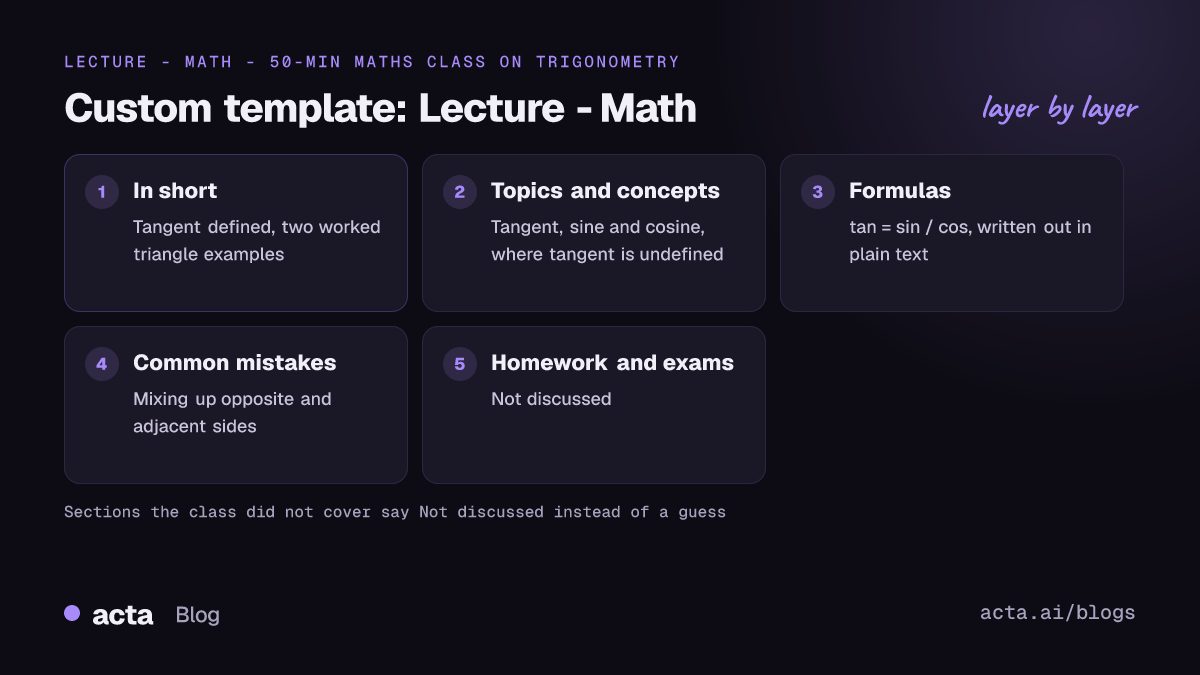
Here's a real description from Acta's own testing, for the "Lecture - Math" template: "For maths lectures and classes: list the topics and concepts taught, the key definitions and formulas, worked examples step by step, common mistakes the teacher pointed out, questions students asked with the answers, and any homework or exam dates mentioned."
In testing, that template produced an "In short" summary, key quotes, a topics section, formulas written out in plain text and "Not discussed" for anything the class didn't cover. Here's an illustrative report in the same shape, for an invented class:
In short: Introduction to the tangent function and how it relates to sine and cosine, with two worked examples on right-angled triangles.
Key quotes: "If you remember one thing today, it's that tangent is just sine over cosine."
Topics and concepts: Definition of tangent in a right-angled triangle; the link between tangent, sine and cosine; where tangent is undefined.
Definitions and formulas: tan θ = sin θ / cos θ; tan θ = opposite / adjacent.
Worked examples: Finding the height of a tree from a 35-degree angle and a 20 m distance, step by step.
Common mistakes: Mixing up opposite and adjacent when the angle is at the top of the triangle.
Homework and exam dates: Not discussed.
Every report also carries a confidence rating. The last line is the one to notice. No homework was set in that class, and the report says so instead of inventing an exercise sheet. When the report lands, it appears in the meeting's Templates tab as "Your template", with Copy and Download, and it's emailed like the other template reports.
Frequently asked questions
What is an AI meeting notes template?
It's a set of sections, each with an instruction and a format, that an AI notetaker fills from the meeting transcript. You define what each section should contain, such as decisions or tasks with owners, and the AI writes it after every matching meeting. Good ones mark missing information as "Not discussed" instead of guessing.
What is the difference between an AI meeting summary and a template?
A summary is free-form: the AI decides what matters and writes a few paragraphs or bullets. A template fixes the sections, their order and their format, so you get the same structure every time. Summaries suit one-off meetings; templates suit recurring meetings where you need the same answers each week.
Can an AI notetaker make things up in the notes?
Yes, it can. Summarisation models are known to sometimes write content the source doesn't support, so check important items against the transcript. Templates that ask for quotes make checking quicker, and tools that write "Not discussed" for empty sections, as Acta does, reduce the pressure to fill gaps with guesses.
Do I need a custom template or is a built-in one enough?
Try the built-in one first if your meeting follows a known framework such as MEDDPICC or a project status review. Switch to a custom template when your team already has its own format, when no built-in covers the meeting type, or when you keep ignoring half of a built-in's sections.
Does an AI meeting notes template work for in-person meetings?
Yes, as long as the meeting is captured. In Acta that means the mobile apps, recording in the browser, or uploading an audio file; the template then runs on the transcript the same way it does for a video call.
Choose the right template for each meeting
The practical question isn't whether to use an AI meeting notes template, but which one for which meeting. A short checklist:
- List your recurring meetings: Write down the three that happen most often and matter most.
- Check the built-ins: See whether one of the 40 built-in templates already fits each meeting.
- Write instructions, not headings: For any custom section, say exactly what belongs in it and in what format.
- Welcome the gaps: Treat "Not discussed" as a prompt for the next meeting, not an error.
- Tell people: Let participants know an AI notetaker is in use; our guide to recording consent covers what to say.
For notes without a bot in the call, use the Chrome extension for meetings in the browser or the desktop app for the Zoom and Teams apps. Teams outgrowing single summaries may also find why AI meeting notes aren't enough for enterprise teams useful.
Found this useful? Share it with your team.