An AI meeting summary template tells the AI which questions to answer before the meeting starts: decisions, risks, owners, dates, whatever your team needs. A generic AI summary decides for itself what mattered. Use a generic summary for one-off conversations where the gist is enough, and an AI meeting summary template for recurring meetings where people need the same facts in the same place every time.
AI at Work 12 min read
AI Meeting Summary Template vs a Generic Summary: Which to Use
Generic AI summaries give you the gist; templates give you the facts. See one meeting written both ways and learn which format suits each meeting type.
By Sarma BKP, Founder & CEO, Acta · Updated
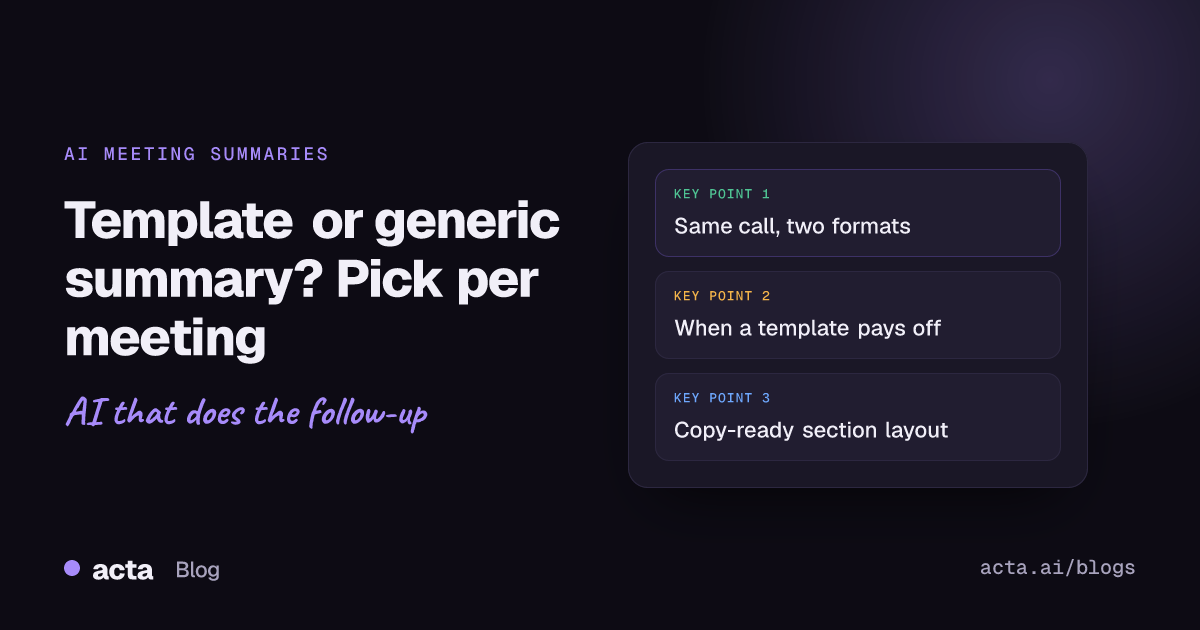
This guide compares the two on a real-looking meeting, shows where each one breaks, and walks through building the template version in Acta. It's written for people who run the same kinds of meetings every week: project leads, account managers, recruiters, team leads. If most of your calls are unstructured chats with no follow-up, a template won't add much, and I'll say so below.
Key takeaways
- A generic AI summary answers "what happened?". A template answers "what do I need to know?", and the second question is the one people actually ask after a meeting.
- Keep a summary template to 5-7 sections. Past that, half the sections come back "Not discussed" and readers stop scrolling.
- Pick the format per meeting type: a template for recurring meetings with a known output (status, deals, interviews), a generic summary for ad hoc calls.
- Write each section as an instruction ("List each risk with who raised it"), not a label ("Risks").
- Test any new template on two or three past meetings before you switch it on for every call.
Table of contents
- An AI meeting summary template fixes the questions in advance
- Generic AI summaries are good at the gist and weak on specifics
- The same meeting reads very differently in each format
- A side-by-side comparison shows where each one wins
- Choose the format per meeting type, not per team
- Build this as a custom template in Acta
- Most template problems come from asking for things nobody says
- Frequently asked questions
- Decide which meetings get a template first
An AI meeting summary template fixes the questions in advance
An AI meeting summary template is a list of named sections, each with an instruction and a format, that an AI fills in from a meeting transcript. "Decisions: list each decision and who made it, as bullets." "Actions: a checklist with task, owner and due date." The AI reads the transcript once per section and writes only what that section asks for.
That sounds like a small change from a normal summary. It isn't. A static doc template (the kind you copy into Google Docs before a meeting) gives a person headings to fill. An AI template gives the model a job description. The headings are the same idea, but the AI also needs to know what to do when the meeting didn't cover a heading, and that's where good AI meeting notes differ from bad ones: they say "write Not discussed" instead of letting the model pad the section with something plausible.
Think of the template as the meeting summary format your team would agree on if you sat down and argued about it for an hour. Most teams never have that argument, so every person's notes look different. The template settles it once.
Generic AI summaries are good at the gist and weak on specifics
A generic AI summary is what most meeting tools produce by default: a few paragraphs or bullets covering the topics discussed, often followed by a list of next steps. It's the right tool more often than template fans admit. For a first call with someone new, a brainstorm, or a catch-up with no agenda, you don't know in advance what will matter, and a summary that follows the conversation is exactly what you want.
Built-in recaps work this way. As of November 2026, Microsoft's recap in Microsoft Teams support page describes AI notes and follow-up tasks on the meeting's Recap tab, and its intelligent recap documentation lists it as a Teams Premium feature. Check the vendor's page for current plans, since they change. The output is a general recap; you don't decide its sections.
The weak spots show up in recurring meetings:
- Emphasis follows airtime. The topic people talked about longest gets the most space, even if the most important line was a 20-second aside about a slipped date.
- Missing items are invisible. If nobody mentioned the budget, a generic summary simply doesn't mention it. A template would say "Budget: Not discussed", which is itself useful information.
- No two summaries line up. Week 1 puts risks in paragraph three, week 2 in a bullet list at the end. You can't compare them or paste them into a tracker.
- Smoothing. Summarisers tend to make a messy conversation sound tidier than it was. Researchers at Google found that neural abstractive summarisers often add content not supported by the source (Maynez et al., On Faithfulness and Factuality in Abstractive Summarization). Narrow, specific instructions give the model less room to fill gaps.
We've written more on that last point in reducing hallucinations in AI meeting summaries. The short version: the more precisely you ask, the easier it is to check the answer against the transcript.
The same meeting reads very differently in each format
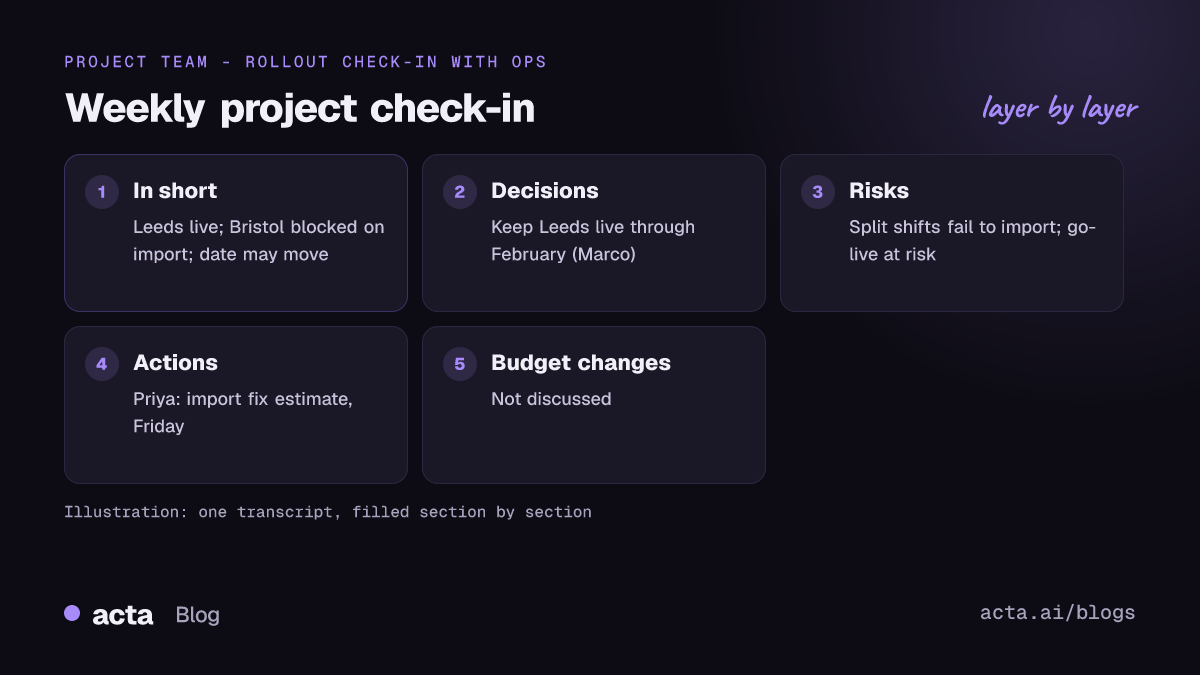
Here's an illustration. A 35-minute weekly check-in between a software vendor's project lead (Priya) and a customer's operations manager (Marco) about rolling out a new scheduling tool across three warehouses. Names and details are invented.
The generic AI summary
Priya and Marco reviewed progress on the scheduling rollout. The team discussed the warehouse pilots, with Leeds going well and some concerns about Bristol. Marco mentioned staff training and the possibility of moving the go-live. They talked about the data import and agreed to follow up on several items. Next steps: Priya to check on the import, Marco to talk to the Bristol team.
Nothing in it is wrong. It's also nearly useless to Priya's manager, who wants to know one thing: is go-live still on 3 March?
The same call through a template
In short: Leeds pilot is live; Bristol is blocked on the shift-pattern import; go-live may move from 3 March to 17 March, decision next week.
Decisions: Keep Leeds live through February. Run Bristol training on 20 February regardless of the import (Marco).
Risks: Bristol shift patterns don't import because of split shifts (raised by Marco). Go-live date at risk if the fix isn't ready by 24 February.
Actions: Priya: send import fix estimate, Friday. Marco: confirm Bristol trainer names, Wednesday. Unassigned: update the rollout plan with the new date options.
Open questions: Does the third warehouse (Hull) start with Bristol or after it? Not discussed in detail.
Budget or scope changes: Not discussed.
Same transcript, same AI. The difference is that someone decided in advance that dates, risks and owners matter for this meeting type. Notice the "Unassigned" action and the two "Not discussed" lines. Those are the bits a generic summary would quietly drop, and they're often what the next meeting should be about.
A side-by-side comparison shows where each one wins
| Question | Generic AI summary | AI meeting summary template |
|---|---|---|
| Setup effort | None | 20-30 minutes once, plus a test run |
| Best for | One-off, exploratory or social calls | Recurring meetings with a known output |
| Shows what was not covered | No | Yes, section by section |
| Same layout every week | No | Yes |
| Easy to paste into a CRM or tracker | Rarely | Yes, if sections match the fields |
| Catches surprises outside the agenda | Yes | Only if you add an "Anything else" section |
| Reader time | Read it all to find one fact | Jump to the section you need |
The row people overlook is the surprise one. A tight template can miss the thing nobody planned to discuss, like a customer casually mentioning a reorg. I add a final "Anything else worth knowing" section to almost every template for exactly that reason. It costs nothing when the meeting stayed on topic.
Choose the format per meeting type, not per team
Teams often ask "should we use templates?" as if it's one decision. It's a decision per meeting type. A sales team might want a strict deal template on discovery calls and a plain summary on internal pipeline chats. A useful rule: if someone copies facts out of the notes into another system after the meeting, that meeting deserves a template.
- Use a template: weekly project check-ins, sales discovery and demo calls, customer QBRs, interviews, sprint planning, incident reviews, client reviews, lectures you'll revise from.
- Use a generic summary: first conversations, brainstorms, coffee chats, all-hands Q&A, anything where the value is "what came up".
- Use both: big recurring meetings with an agenda but lots of open discussion. Run the template for the structured part and keep the plain summary as a backup.
If you're not sure, start generic for a month and watch what people copy out of the summaries. That list is your first template. For sales calls in particular, our sales call notes template examples give you section layouts for discovery, demo, negotiation and renewal calls you can start from.
Build this as a custom template in Acta
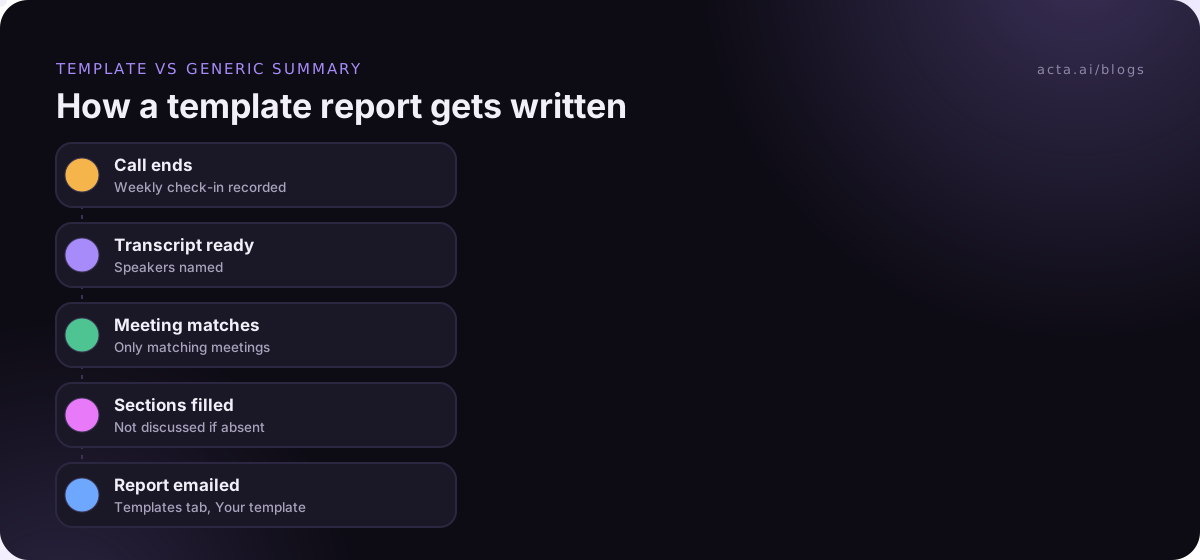
Acta writes structured meeting notes from built-in report templates (there are 40, grouped by role, which you can browse on the templates page) and from custom templates you write yourself. Custom templates are a paid-plan feature: the 15-day free trial includes the built-in templates, and trial users see an upgrade prompt when they try to create their own. The full walkthrough is in the help article on custom templates; here's the short version for a weekly check-in.
- In the Acta dashboard, open Templates in the sidebar, choose the My templates filter and click + Create template.
- Give it a Template name, for example "Weekly project check-in".
- Under Start from, pick Describe it, type what the report should do, and click Draft sections. Acta drafts 3-7 sections you can change. (You can also copy a built-in one such as Project status, or start Blank.)
- Fill in What should this report do?. Acta also uses this description to decide which meetings match, so name the meeting type plainly.
- Set the sections in order, each with a title, what Acta should write there, and a format (Paragraph, Bullets, Checklist or Table). Use the layout below.
- Add extra instructions if you want them, such as "Write in short sentences" or "Use dates exactly as said".
- Under When should Acta use it?, choose Only matching meetings so it runs on check-ins and not on everything.
- In the preview panel, use Test on a past meeting and Run on this meeting. Nothing is saved or sent. Adjust, then Save.
A layout you can copy:
What should this report do? For weekly project check-ins with a customer: record decisions, risks to dates or scope, actions with owners and due dates, and questions left open.
1. Decisions (Bullets): each decision made, and who made it.
2. Status by workstream (Table, columns: Workstream | Status | Next milestone | Notes): one row per workstream mentioned.
3. Risks and blockers (Bullets): each risk, who raised it, and the date or scope it affects.
4. Actions (Checklist): task, owner, due date.
5. Open questions (Bullets): questions raised and not answered.
6. Anything else worth knowing (Paragraph): anything important that doesn't fit above.
Every report also gets an "In short" summary, a confidence rating and key quotes, and Acta writes "Not discussed" rather than guessing and "Unassigned" when no owner was named. After the meeting, the report appears in the meeting's Templates tab labelled "Your template", with Copy, Download and Push to CRM, and it's emailed like other template reports.
Most template problems come from asking for things nobody says
I've built a lot of these, and the failures repeat. Most come from writing the template you wish the meeting followed instead of the one it does follow.
Sections for things that are never said aloud
"Customer sentiment score" or "Overall project health (1-10)" will come back as "Not discussed" or as a guess. If nobody in the meeting says it, the transcript doesn't contain it. Ask for evidence instead: "Quotes where the customer expressed frustration or satisfaction."
Too many sections
Acta allows up to 12 sections, and that's a ceiling, not a target. A 12-section summary for a 25-minute call reads like a form. Five to seven is where most of mine end up.
Labels instead of instructions
"Risks" is a label. "List each risk to the go-live date, who raised it, and any mitigation agreed" is an instruction. The second produces better output every time because the model knows what counts.
Every meeting mode on a narrow template
A QBR template running on your daily standup will mark half its sections "Not discussed", and Acta marks meetings that aren't the right kind as not relevant. Use Only matching meetings for anything specific and save Every meeting for a general-purpose template.
Never testing
Run the template on two or three past meetings of the right type before switching it on. You'll spot a vague section in the first preview. Then keep checking a sample now and then; our guide to testing AI meeting notes accuracy shows a quick way to do it.
Where Acta fits
Acta records your Zoom, Google Meet and Teams calls (or an uploaded recording), then writes both a standard summary and any templates that match the meeting. If bots aren't welcome in the call, the desktop app or the Chrome extension records from your own computer instead. Whichever way you record, tell people first; our guide on recording meetings with AI and consent covers what to say.
Frequently asked questions
What is an AI meeting summary template?
It's a set of named sections, each with an instruction and a format, that an AI fills in from a meeting transcript. Instead of choosing what to summarise, the AI answers the questions you set: decisions, risks, owners, dates. Sections the meeting didn't cover should come back as "Not discussed" rather than as a guess.
Is a generic AI summary good enough?
For one-off or exploratory meetings, usually yes. It captures the gist and the obvious next steps. It falls short on recurring meetings where people need specific facts in the same place every week, need to see what was not covered, or need to copy the notes into a CRM or project tracker.
What is the best meeting summary format?
For most work meetings: a one-line "In short", decisions, actions with owners and due dates, risks, and open questions. Add one or two sections specific to the meeting type, such as a stakeholder table for sales calls or a timeline for incident reviews. Keep it to 5-7 sections so people actually read it.
How do I stop an AI summary from making things up?
Ask narrower questions, tell it to write "Not discussed" when something wasn't covered, and ask for quotes as evidence on judgement calls. Then spot-check a few summaries against the transcript. Templates help because each section is small enough to verify quickly.
Can I use structured meeting notes and a plain summary together?
Yes, and for big recurring meetings it's often the best setup. The template captures the facts you always need; the plain summary catches the conversation that wandered off the agenda. In Acta, the standard summary is written for every meeting and matching templates run alongside it.
Decide which meetings get a template first
Don't template everything at once. Start with the one recurring meeting whose notes people complain about most, get that template right, then add the next. A short checklist:
- List your recurring meetings: note which ones end with someone copying facts into another tool.
- Pick one meeting type: the one with the clearest output, such as a weekly check-in or discovery call.
- Write 5-7 sections as instructions: include actions with owners and an "Anything else" catch-all.
- Test on past meetings: run the draft on two or three real transcripts and fix vague sections.
- Review after a month: drop sections that always say "Not discussed" and add what people still ask for.
To try it on your own calls, record your next check-in with the Acta Chrome extension and compare the plain summary with a template of your own.
Found this useful? Share it with your team.