Use Cases 6 min read
Support Case Summaries From Customer Calls, Ready for the Ticket
How Acta turns recorded support calls into case summaries with the issue, steps taken, resolution status, escalations, customer mood and follow-up tasks.
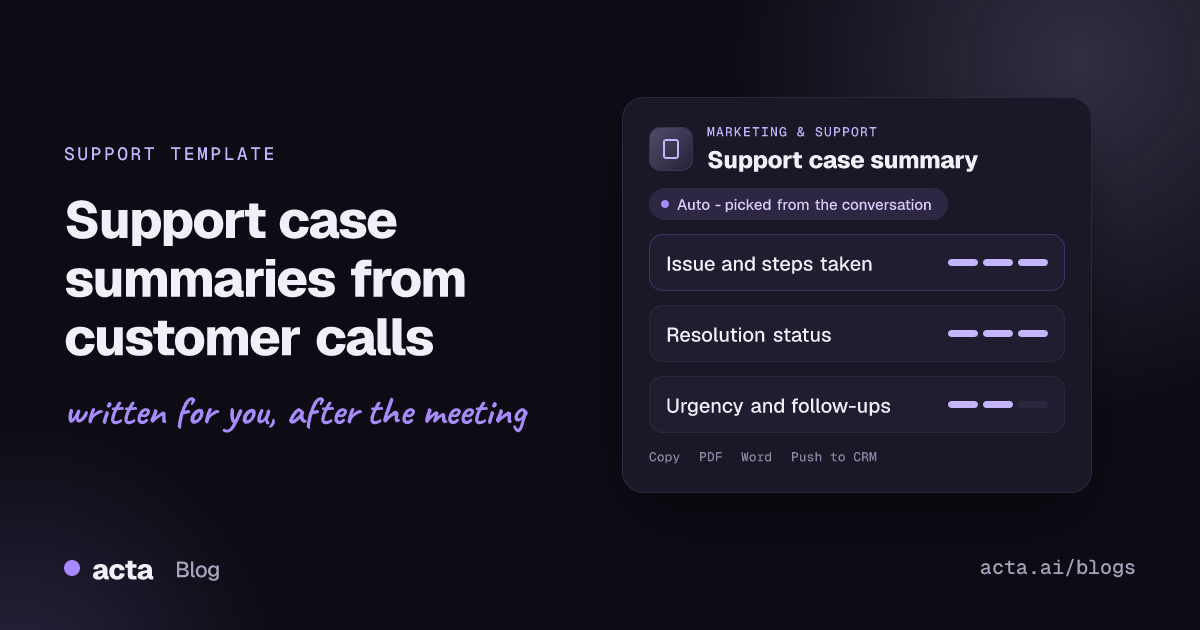
Quick answer: A support case summary is a structured record of a customer support call: who the customer is, the issue they reported, the troubleshooting steps taken, the resolution status, escalations and follow-ups, the customer's mood and urgency, and related tickets. Acta writes it automatically from the recorded call, using only what the customer and agent actually said.
Every support call ends with the same chore: write it up in the ticket before the next call starts. On a busy queue, that note gets compressed to "walked customer through reset, resolved" or skipped until the end of the shift, by which point the details are gone.
The cost shows up later. The next agent who picks up the case cannot see which steps were already tried, an escalation lands without context, and a frustrated customer has to explain the problem again. A case summary written from the call itself keeps that context attached to the case.
What is a support case summary?
A support case summary (also called case notes, ticket notes or resolution notes) is the written account of a support interaction. Its job is to let anyone who opens the case understand, in under a minute, what the customer needed, what has been done and what happens next.
Good case notes are specific. Generic entries such as "fixed per user" leave the next person starting from scratch; GIVA's guide to ticket resolution notes that help the next person recommends recording the symptom, the cause, the fix and the customer's confirmation. Strong case notes usually answer:
- Who is the customer and which account or product is affected?
- What exactly did they report, in their words?
- What did the agent try or instruct, and in what order?
- Is the case resolved, escalated, or waiting on someone?
- What follow-up is owed, by whom and when?
What does Acta's support case summary report include?
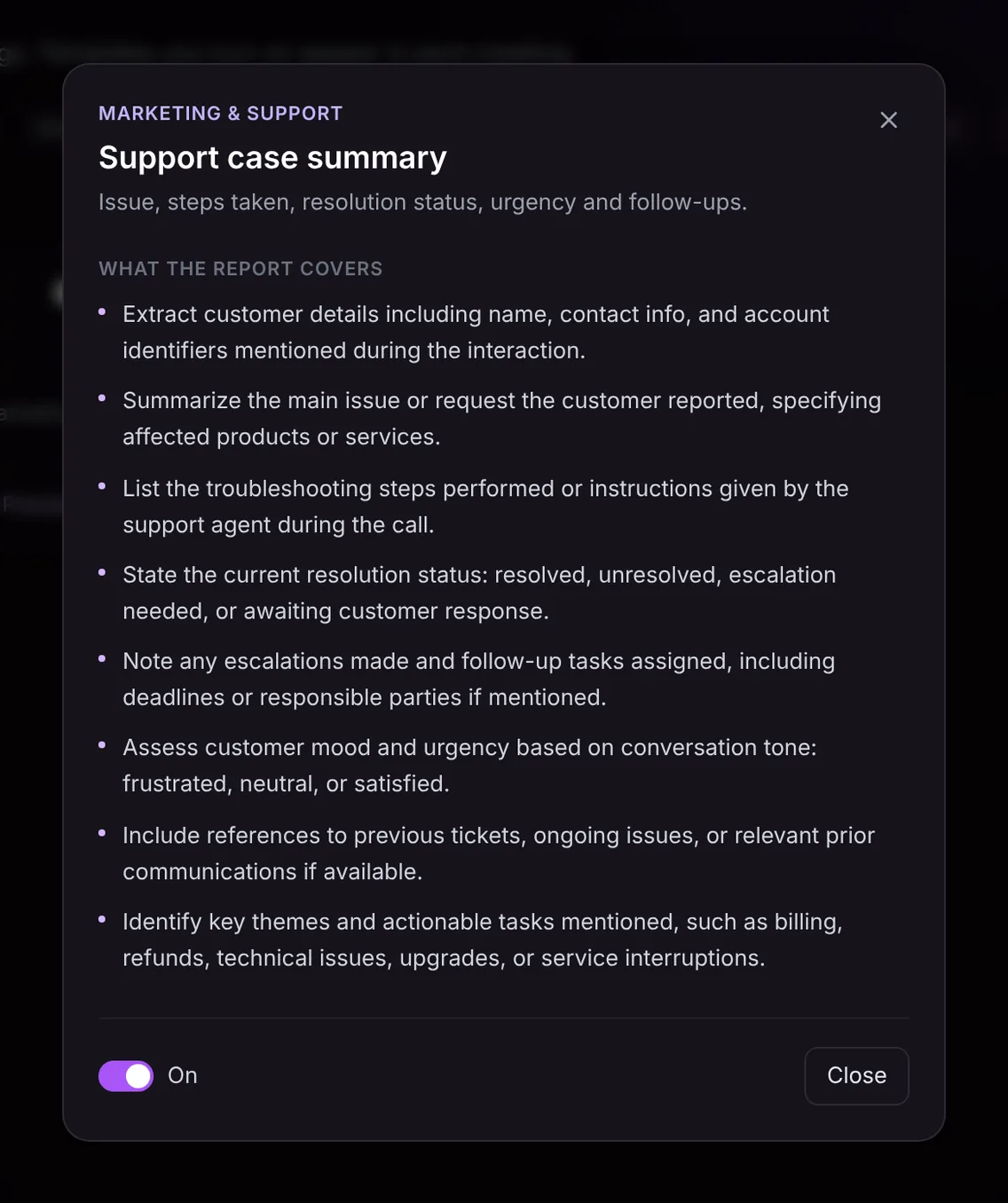
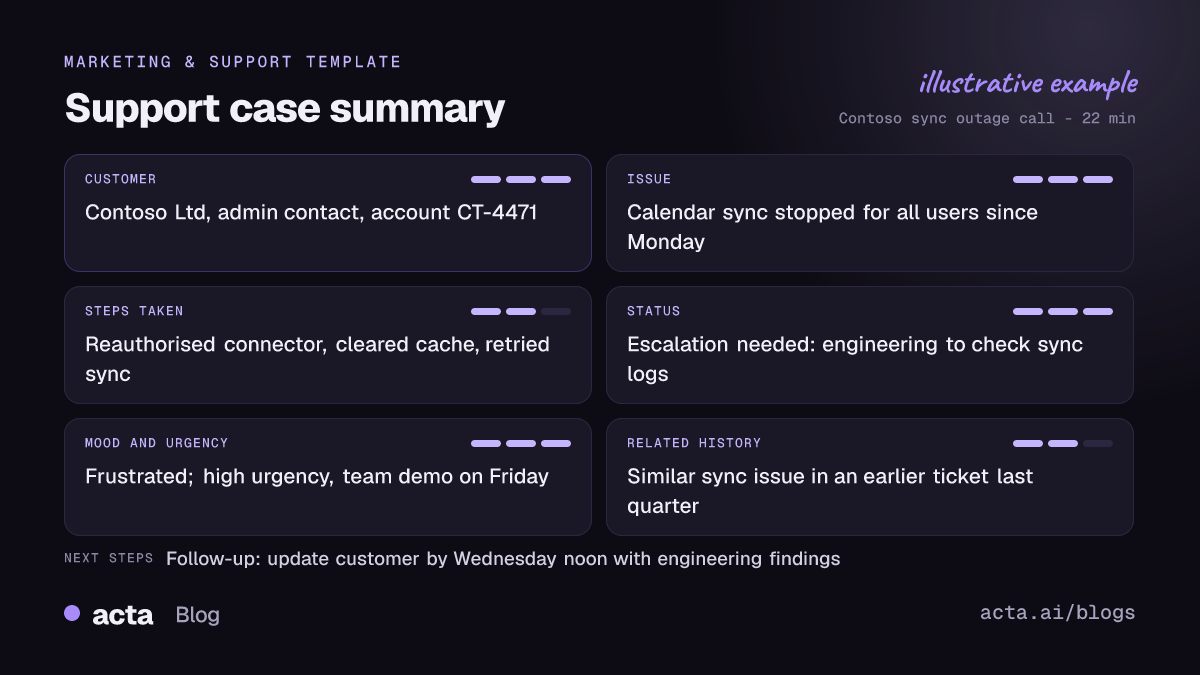
The template is designed around what a support lead or the next agent needs from a case. Each summary covers:
- Customer details: the name, contact information and account identifiers mentioned during the call.
- Issue or request: the main problem the customer reported, with the affected products or services.
- Troubleshooting steps: what the agent tried or told the customer to do, so nobody repeats it.
- Resolution status: resolved, unresolved, escalation needed, or awaiting customer response.
- Escalations and follow-ups: escalations made and follow-up tasks, with deadlines and responsible people when they were stated.
- Customer mood and urgency: frustrated, neutral or satisfied, judged from the tone of the conversation.
- Related history: references to previous tickets, ongoing issues or earlier communication that came up.
- Themes and tasks: the categories the call falls under, such as billing, refunds, technical issues, upgrades or service interruptions, with the actionable tasks.
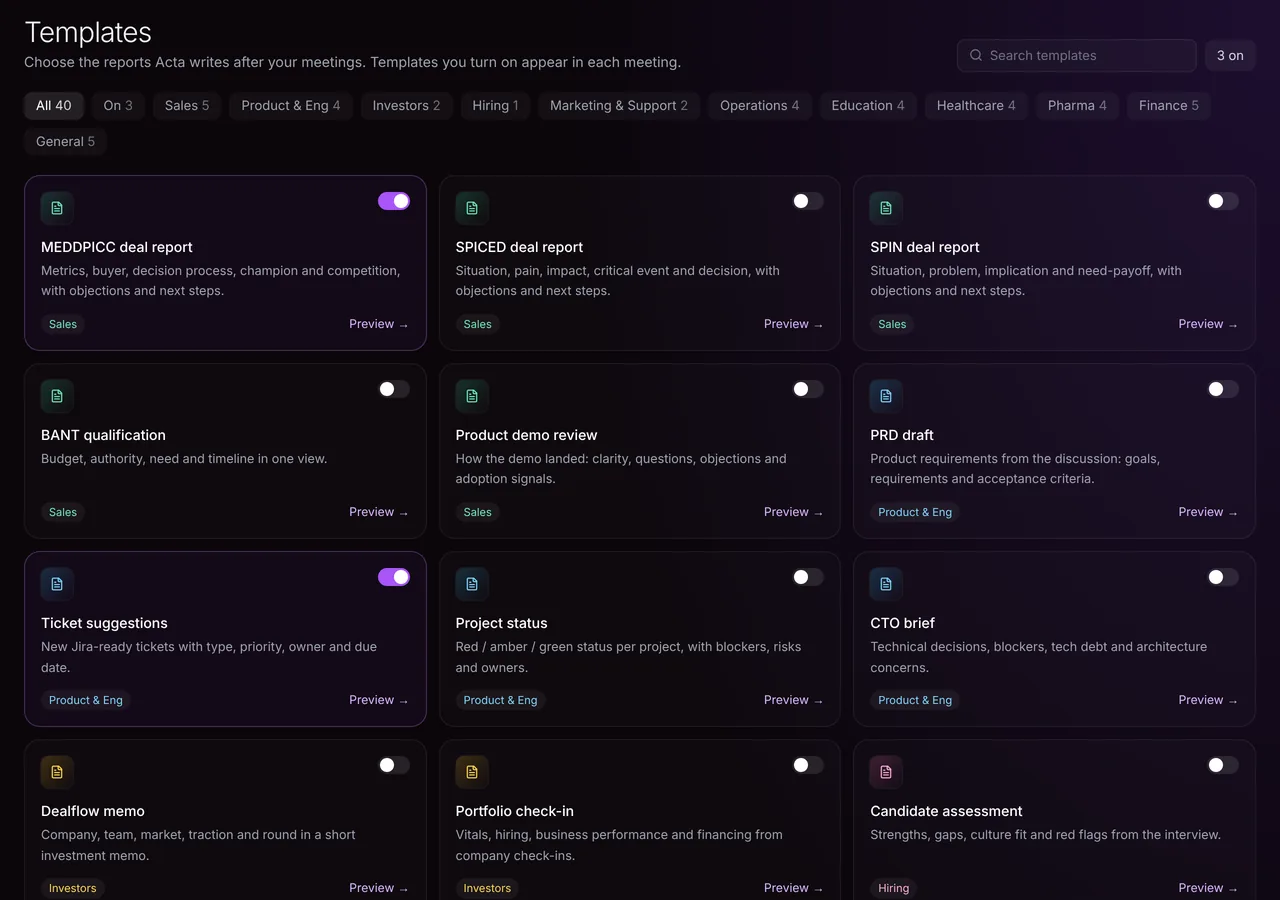
Here is the template in Acta's Templates page, with the preview of what the report covers:
And an illustrative example of a finished report:
Why is a support case summary useful, and who is it for?
Frontline agents get their after-call work back. Team leads and customer success managers get a consistent record across agents, which is hard to achieve when everyone writes notes in their own style. A few situations where it pays off:
- Escalations to tier 2 or engineering. The summary already lists the troubleshooting steps and the affected product, so the specialist starts from where the call ended.
- Repeat callers. When a customer calls back, the related-history section and earlier summaries show what was promised last time.
- Billing and refund disputes. A clear record of what the customer reported and what the agent offered settles "but I was told" conversations quickly.
- Spotting churn risk. A frustrated mood plus an unresolved status on a key account is a signal the customer success manager should see the same day.
Acta also writes the summary, action items with owners and due dates, and decisions for every call. With OneChat you can ask across all your recorded calls, for example which customers reported the same sync error this month, and get answers with sources. See how to ask questions across all your meetings.
How does Acta pick the support case template automatically?
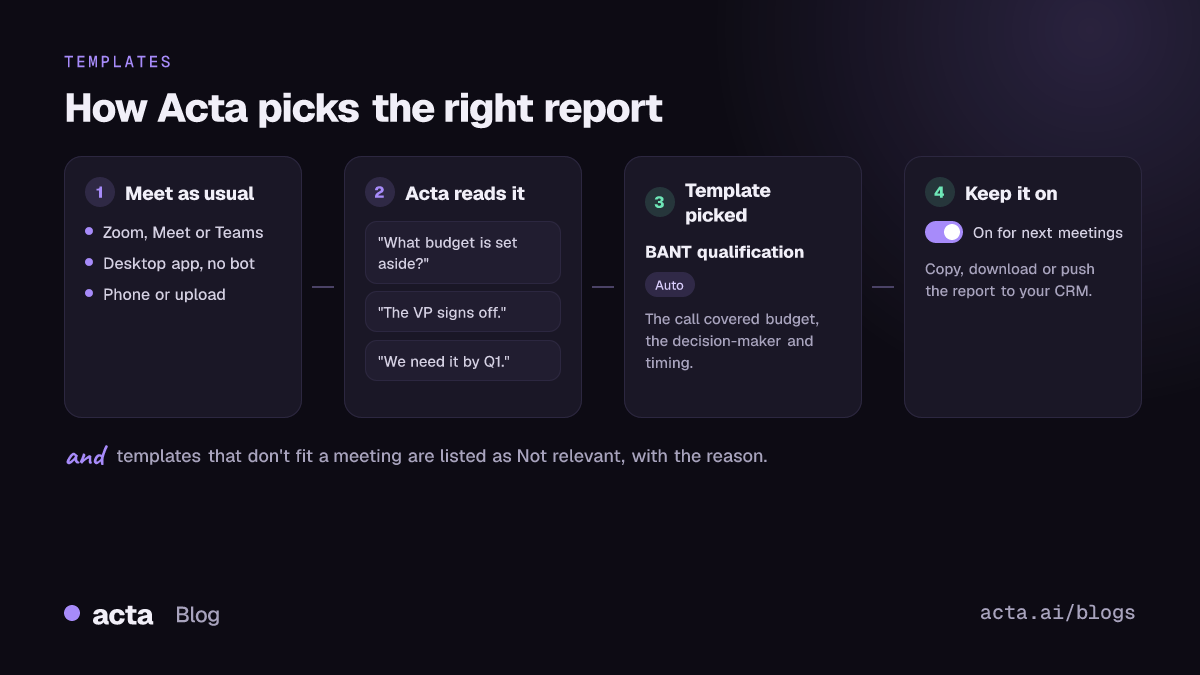
Acta reads the conversation and picks a fitting template even if you have not turned it on. Support calls have a recognisable shape: a customer describing a problem with a product, an account number or order being confirmed, the agent walking through steps, and a discussion of whether it is fixed or what happens next.
When Acta picks the support case summary this way, the report is labelled "Auto" and comes with the reason, for example that the call covered a reported service outage, troubleshooting and an escalation. If it is the report you want, "Turn on for future meetings" keeps the template on with one click.
If you have the template on and record an internal team meeting or a sales demo, the template checks first whether the meeting is a support interaction. When it is not, there is no forced, half-empty case summary; the template appears under "Not relevant" with the reason.
How do you use the support case summary in Acta?
- Record the call. Use the meeting bot on Zoom, Google Meet or Microsoft Teams, the bot-free AI note taker on desktop, the Chrome extension or the mobile apps. Calls recorded elsewhere can be uploaded.
- Turn on the template, or let Acta pick it. On the Templates page at Acta's report templates, preview the support case summary and switch it on.
- Open the meeting's Templates tab. The case summary sits next to the summary and transcript.
- Move it where your team works. Copy it into your helpdesk ticket, download it as PDF, Word or Markdown, or use Push to CRM to add it as a note on the customer's contact in Salesforce, HubSpot or Zoho (paid plan, with that CRM connected).
If the call turns up a bug, the follow-up often belongs in engineering's backlog; see turning meeting action items into Jira tickets.
Tips for a more complete case summary
- Confirm identifiers out loud. Reading back the account ID or order number puts it in the customer details section.
- Narrate the steps. "I'm clearing the cache on your workspace now" records the action; silent clicking does not.
- State the status before hanging up. "This is escalated to billing, you'll hear back by Thursday" gives the status, owner and deadline in one sentence.
- Mention earlier tickets. If the customer refers to a previous case, say the ticket number so it lands in related history.
For account-level conversations, the customer QBR report covers value, health and expansion. Both sit within Acta for customer success and support.
Frequently asked questions
What should support case notes include?
The customer and account, the issue in their words, the steps taken, the resolution status, any escalation, and the follow-up owed with an owner and date. Mood and urgency help prioritise.
How does Acta judge customer mood?
From the tone of the conversation, rated as frustrated, neutral or satisfied. It is a prompt for the team, not a score.
Can I add the case summary to my CRM?
Yes. Push to CRM adds the report as a note on the customer's contact in Salesforce, HubSpot or Zoho on a paid plan with that CRM connected. You can also copy or download it.
Does it work for calls that were not on Zoom, Meet or Teams?
Yes. Record with the desktop or mobile apps, or upload a recording, and the template works on that conversation.
Want case notes written before your next call starts? Try Acta free for 15 days.