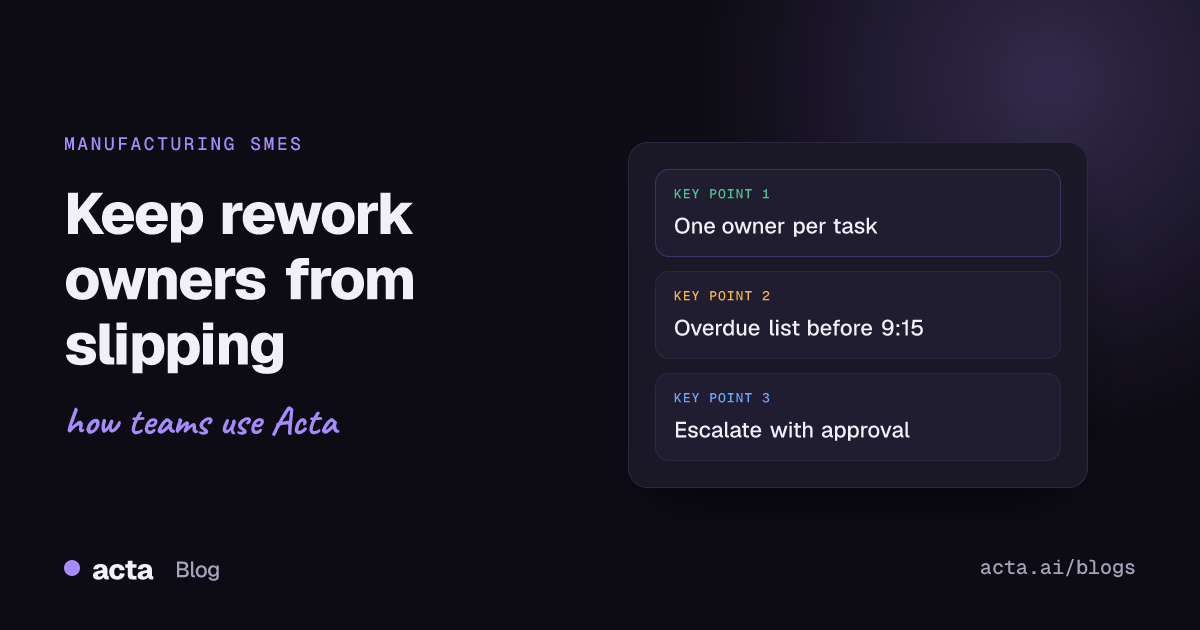
Packaging job review meeting notes track jobs, not discussion
A job review in a packaging plant is a fast meeting. The planner reads out job numbers; pre-press, purchase, the press supervisor and customer service each say where things stand. In fifteen minutes you might cover thirty jobs. The minutes that matter are not "we discussed job 4471" but four facts per job: stage, blocker, owner, date.
Good notes from a job review look like a tracker, not a story. For each job: customer and SKU, current stage, the next physical milestone (proof approved, plates out, board in, press date, dispatch), who owns getting there and the date they agreed. Add anything the customer said that changes the job, such as a new barcode, a different board grade or a colour target.
Colour is where customers and printers most often talk past each other. Many brand owners ask converters to print to a published standard; ISO 12647-2:2013 sets process parameters for four-colour sheet-fed and web-fed offset and, per ISO's own description, applies to printing on cardboard for packaging. As of November 2026, ISO also lists a revision of ISO 12647-2 at committee draft stage. If a customer names a standard on a call, put it in the notes against the job, along with who will check the proof.
A carton plant's week runs on three meetings
Most printing and packaging SMEs run some version of these:
- Daily job review (on the floor or in the planning office, 15-20 minutes): planner, pre-press, press and finishing supervisors, purchase, customer service.
- Artwork and proof calls (Google Meet or Teams): customer service and pre-press with the client's brand or packaging manager, going through soft proofs, dielines, barcodes and legal copy.
- Weekly customer job review: the owner or sales head with key clients, covering upcoming launches, reprints and complaints.
The trouble is the hand-off between the second and the first. The client says something on a proof call; customer service hears it; the floor needs it. Sticky notes and a WhatsApp group carry the message, mostly. When they don't, the press slot is the casualty. Our post on client feedback tracking covers the same problem from the agency side.
A conditional artwork approval cost a Saturday press slot
An illustrative example. Kaveri Cartons (invented) is a 140-person folding-carton plant near Hosur with two sheet-fed offset presses. Job 4471 is 60,000 cartons for a nutraceutical brand's new protein bar, launching in three weeks.
Monday, proof call. Lakshmi in customer service and Priya, the pre-press head, take the client's packaging manager, Neha, through soft proof v2. Neha says, "Artwork is approved, subject to the new EAN from our team, I'll send it today." Priya says she'll send proof v3 with the barcode by Thursday. Arun, the planner, has already pencilled job 4471 on the six-colour press for Saturday's day shift.
Tuesday. The barcode arrives in Lakshmi's inbox, not Priya's. Lakshmi forwards it on Wednesday evening.
Thursday, job review. Arun asks, "4471 on track?" Lakshmi says, "Approved on Monday." Priya is out on a site visit. Nobody mentions the condition.
Friday afternoon. Plates are made from proof v2, without the new barcode. On Saturday morning the press operator spots the old EAN against the job card. The run stops. Plates are remade, the slot goes to another job, and 4471 moves to the following Wednesday. Neha's launch slips by four days, and the rest of the week's press schedule shuffles to fit. Nobody was careless; the condition simply never became a task with a name and a date.
The Action items tracker chases each promise to done
Record Monday's proof call and Thursday's job review in Acta, and the condition becomes a task. Acta pulls action items from each meeting with owner and due date, and collects them across meetings under My meetings then Outcomes then Action items.
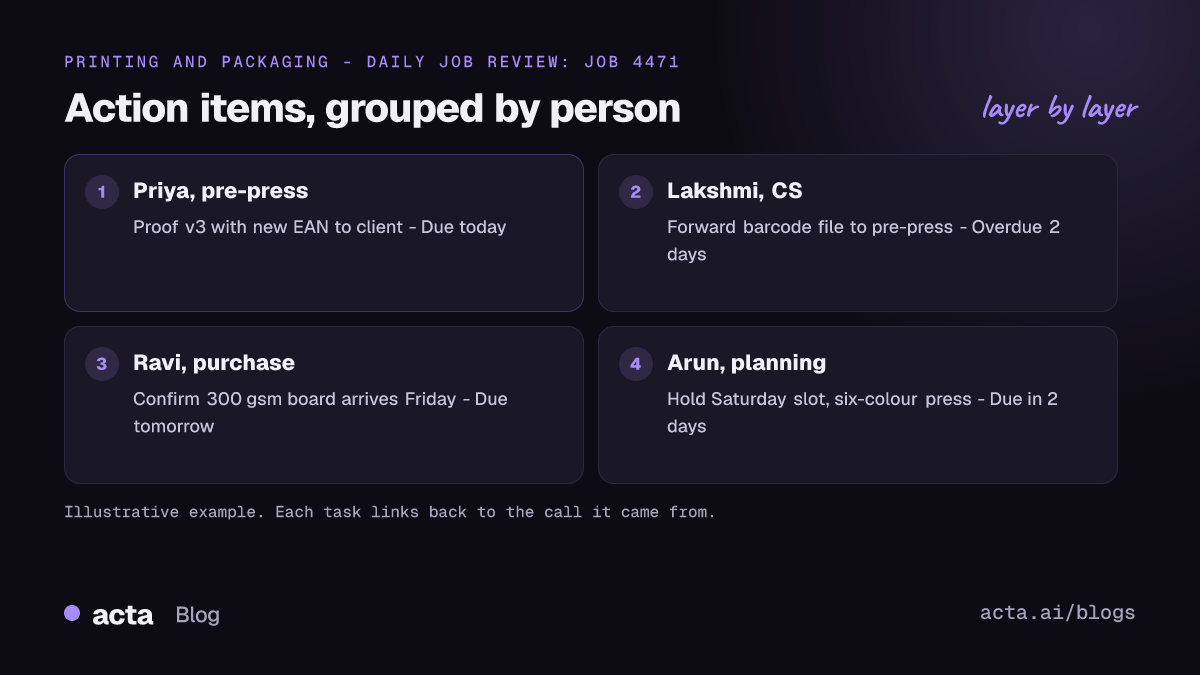
Here is how Arun's tracker would have looked on Thursday morning, grouped by Person, after Lakshmi shared Monday's call with the workspace:
| Owner | Action item | From meeting | Status pill |
|---|
| Priya | Send proof v3 of job 4471 with Neha's new EAN for approval | Proof call, job 4471 (Mon) | Due today |
| Lakshmi | Forward Neha's barcode file to pre-press | Proof call, job 4471 (Mon) | Overdue 2 days |
| Ravi (purchase) | Confirm 300 gsm FBB board for 4471 arrives Friday | Daily job review (Tue) | Due tomorrow |
| Arun | Hold Saturday day shift, six-colour press, for 4471 | Daily job review (Tue) | Due in 2 days |
Two red flags jump out: an overdue hand-off and a proof approval due the day before plates. Used this way, an action item tracker for teams becomes the agenda of the Thursday review, and the press schedule stops being a Saturday surprise.
How the tracker is laid out
Across the top are four filter tiles with counts: Open, Overdue, Due this week and Done. Click Overdue and the list shrinks to what's late. Group by switches between Meeting and Person. Run the job review grouped by Person and each supervisor sees only their own lines; group by Meeting and you see one card per call, with "N overdue", an "X of Y done" bar, a one-line synopsis and an Open meeting button.
Each row has a tick to mark it done, the owner, comments and a status pill: "Overdue N days", "Due today", "Due tomorrow", "Due in N days", "Done" or "No due date". The search box ("Search action items, e.g. pricing, Jira") takes a job number, so typing 4471 pulls together every task for that job across every meeting. If a row has no due date, fix that in the meeting; an undated proof task is the most dangerous kind.
Daily reminders that stop by themselves
The piece that would have saved Saturday is Auto follow-up. It is off until you turn it on. In its settings you choose:
- When: a time, and Weekdays or Every day, in your time zone. 8:30 am, before the job review, works well.
- Who gets it: "Each owner, their own items", "Me, a summary of everyone's items", or "All meeting participants".
- Which items: All open, Due or overdue, or Overdue only.
- Stop after: 7, 14, 21 or 30 days after the meeting.
It covers meetings you own and stops by itself when every item is done. Use Preview email to see what Priya would receive. A bell on each meeting card pauses or resumes reminders for that one meeting, and rows show "Reminded once" or "Reminded N times", which tells you quickly who is ignoring the emails. The Follow-up email button on a meeting card drafts a note to the client, handy after a proof call; more on that in automating follow-up emails.
Decisions, risks and questions fill in the job's story
Action items carry most of the weight in a packaging plant, but three other screens help.
Decision log (Outcomes then Decision log). Monday's call produces a card: "Job 4471 artwork approved, subject to new EAN", status Active, decided by Neha, owner Priya, with "Actions 0 of 1 done". When the client later asks for matt varnish instead of gloss, the same card shows Changed with the old value. The "Need follow-through" tile shows decisions whose actions are slipping.
Risk Registry (its own tab under My meetings). Ravi mentioned on Tuesday that the board mill "may be a day late." That becomes a row: Risk "300 gsm FBB for 4471 may arrive after Friday", Impact Medium, Owner Ravi, Mitigation Agreed "use stock from the second mill if not dispatched by Thursday", Status Mitigating. If it is raised again with worse news, the row is tagged "Getting worse".
OneChat (top of the sidebar). On Friday, Arun asks: "What exactly did Neha approve for job 4471, and was anything conditional?" The answer: approved on Monday subject to a new EAN Neha would send; proof v3 with the barcode promised by Priya for Thursday; no later approval of v3 found. Found in: "Proof call, job 4471" at 12:05. That one answer stops the plates. For one meeting, Ask Acta on the meeting page does the same job.
For templates, turn on Project status for the weekly customer job review and KPI review for the monthly wastage and OEE review. A custom template (paid plans; see the custom templates guide) fits the daily review best:
- Name: Carton job review. Run on: Only matching meetings ("daily or weekly reviews of packaging print jobs, proofs, plates, board and press dates").
- Jobs covered (Table: Job no | Customer | Stage | Next milestone | Press date)
- Artwork and proof status (Table: Job | Proof version | Approved by | Conditions)
- Materials at risk (Bullets: board, inks, foils, cartons)
- Who does what by when (Checklist: task, owner, due date)
- Customer's words on approval (Bullets: exact quotes)
An Agent Builder (beta) agent nudges overdue proofs
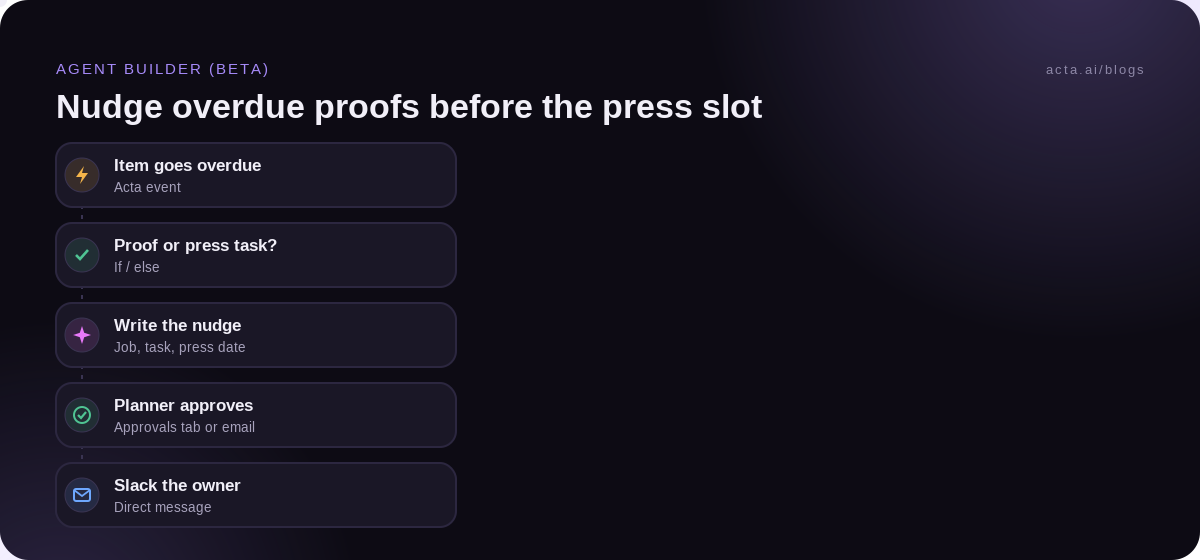
Auto follow-up emails everyone. For the few tasks that can cost a press slot, a sharper nudge helps. Agent Builder (beta) can watch for overdue items and message the owner on Slack, after the planner approves. Set-up takes an afternoon:
- In Agent Builder, click New agent, or start from blank.
- Trigger: Event in a connected app, Acta, "action item overdue".
- If / else: continue only if the item mentions proof, artwork, plate, barcode or press.
- AI step: "Write a two-line Slack message to the owner naming the job, the task, how late it is and the next press date mentioned in the meeting."
- Human approval: the planner approves or rejects in the Approvals tab or by email. Unanswered for 24 hours, nothing is sent.
- Slack action: message the owner directly.
- Test, then Run test (messages are only shown, not sent), then Turn on.
See testing an agent safely and turning it on before you go live.
A two-week pilot covers pre-press, planning and customer service
Each person you add to the workspace uses a seat. In a 140-person plant that may be six or eight people: the planner, pre-press head, customer service team and the owner. Pro is USD 8 per seat a month or USD 72 per seat a year; the Outcomes views, Risk Registry and OneChat are included in the 15-day trial and Pro.
Days 1-3. Create the workspace; invite pre-press, planning and customer service. Customer service captures proof calls with the Acta Chrome extension for Meet or Teams in the browser, so there's no bot on the client's screen. The planner records the daily job review on the Acta mobile app or in the browser. Say at the start that you record; see recording consent and what to tell participants.
Days 4-7. Every proof call and job review is shared with "Everyone in" the workspace, so each person's Action items view picks it up. Say job numbers out loud; the search box depends on them.
Week 2. Turn on Auto follow-up (weekdays, 8:30, each owner their own items, due or overdue). Run the job review from the tracker grouped by Person. Add the overdue-proof agent. Then invite the press and finishing supervisors.
Mistakes to avoid: meetings named "Call" instead of "Proof call, job 4471"; tasks with no date; and floor meetings held in Tamil and English mixed. Tamil is available in beta (choose it in Settings), but each meeting has one language, so pick the one most people speak.
Frequently asked questions
Can I record the daily job review on the shop floor?
Yes. Use the Acta mobile app on iPhone or Android, or Record audio in a browser, to capture an in-person meeting. Stand near the people talking and keep machines quiet if you can; a press running beside the huddle makes any transcript worse. Upload an MP3 or M4A if someone recorded it on another device.
Does each supervisor see the whole plant's action items?
Each person sees action items from meetings they recorded or that were shared with them in the workspace. Share every job review with everyone, and each supervisor's Action items view groups their own tasks under Person. There is no single company-wide list that ignores sharing.
Can Acta create tasks in Asana or Jira from the job review?
Yes, through the Ticket suggestions template. Acta suggests tasks from the meeting, and you tick the ones to create in Jira, Asana, ClickUp or Monday.com. Nothing is created without your click. Many plants keep the tracker inside Acta and skip this step.
Will clients get emails from Acta?
Only if you choose. Auto follow-up can include all meeting participants, but most plants pick "Each owner, their own items". The Follow-up email button drafts a message you send yourself, and agents send nothing without passing your approval step.
Set up your next job review this week
Start small and make the job number the anchor of everything.
- Name meetings by job: "Proof call, job 4471", never "Call with Neha".
- Write conditions as tasks: every "approved, subject to" gets its own owner and date.
- Date from the press slot backwards: proof, plate and board dates all follow the slot.
- Turn on daily reminders: each owner, their own items, before the job review.
- Review Overdue first: open the tile before anyone reads out job status.
Acta writes the notes and keeps the tasks in front of the right person; it does not plan your presses. You can see more on our page for printing and packaging companies. Add the Chrome extension before your next proof call and start the 15-day trial from pricing.