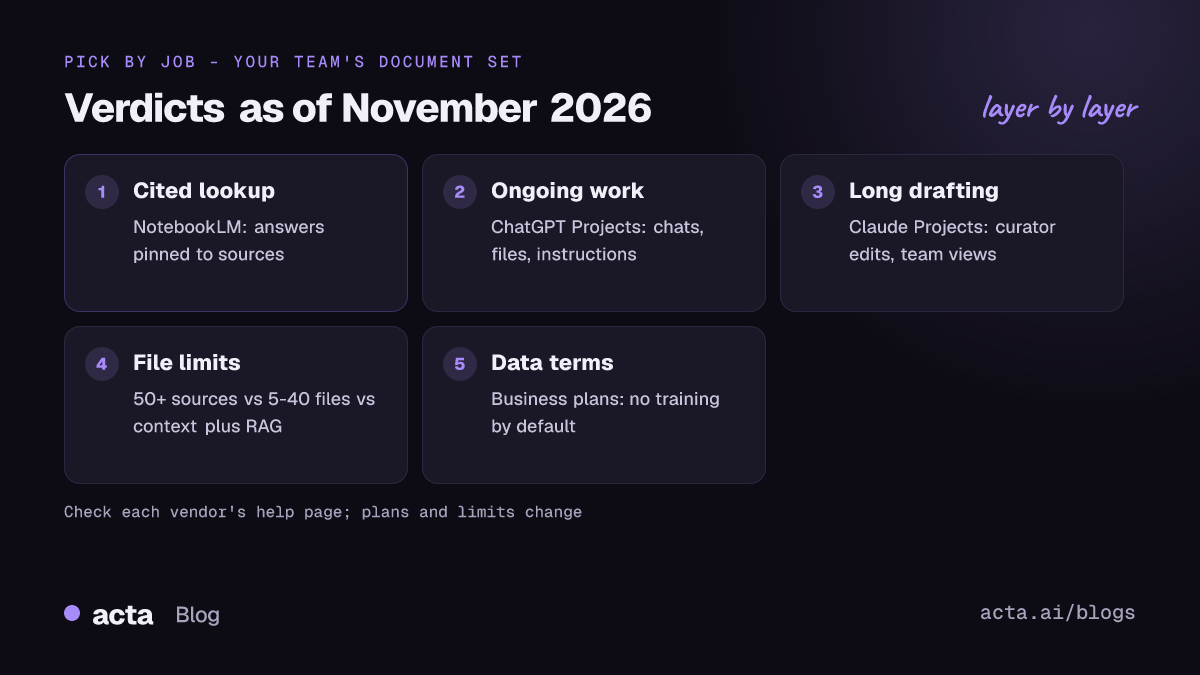
NotebookLM vs ChatGPT Projects vs Claude Projects comes down to the job. Pick NotebookLM when people need answers pinned to a fixed set of documents with citations they can click. Pick ChatGPT Projects when the work is an ongoing stream of chats, files and instructions on a team that already lives in ChatGPT. Pick Claude Projects when you draft and analyse long documents against shared instructions, and want view or edit roles on a Team or Enterprise plan.
This guide compares the three on what a team actually hits: which sources each accepts, the limits, how sharing works, whether answers cite your files, and what admins control. Every product fact comes from the vendor's own help pages as of November 2026. Plans change often, so check the linked page before you commit. If your documents need permission-aware search across thousands of files, none of these is the right tool; you want a proper retrieval system.
Key takeaways
- NotebookLM's free tier allows 100 notebooks with up to 50 sources each, and every answer is grounded in those sources; paid tiers raise the source cap.
- ChatGPT Projects caps files per project by plan (5 on Free, 25 on Go and Plus, 40 on Business, Enterprise and Edu per OpenAI's help article), and sharing is open to every plan.
- Claude Projects sharing exists only on Team and Enterprise, with "Can view" and "Can edit" roles; paid plans switch to retrieval when project knowledge nears the context limit.
- Google Docs and Slides in NotebookLM are static copies: re-sync them or the answers drift from the live document.
- Run the same ten questions with known answers through all three before choosing; it takes an hour and settles most debates.
Table of contents
- Each tool answers a different question about your documents
- Source types and limits differ more than the marketing suggests
- NotebookLM is the only one built around citations
- Sharing and roles decide whether it works for a team
- Admin and data controls depend on the plan, not the product
- NotebookLM vs ChatGPT Projects vs Claude Projects: pick by job
- Test all three with the same ten questions
- Meeting knowledge is the gap all three leave
- Frequently asked questions
- Choose the right tool for your team's documents
Each tool answers a different question about your documents
People lump these three together because they all let you upload files and chat about them. They were built for different habits, and that shows up the moment a team uses them for a month.
NotebookLM is a research notebook. You add sources, and the model answers from those sources rather than from its general knowledge. It's closest to a reading room: a fixed pile of documents, questions about them, and footnotes back to the page. The output features (audio overviews, study guides, briefings) all assume the same thing: the sources are the truth.
ChatGPT Projects is a folder for ongoing work. OpenAI's help article describes it as a place that groups chats, files and custom instructions so related work stays together. The model still brings everything it knows, and project files are context, not a boundary. That's a strength when you want the assistant to reason past the documents, and a weakness when you need to know which sentence came from your file.
Claude Projects is a workspace with its own chat history and knowledge base. Anthropic's projects help page calls projects "self-contained workspaces with their own chat histories and knowledge bases", with per-project instructions on tone or role. In practice it behaves like ChatGPT Projects with stronger sharing roles on business plans and an automatic switch to retrieval when knowledge gets large.
So the first question isn't "which model is smartest". It's whether your team needs answers bounded by the documents, or a capable assistant that happens to have the documents nearby.
Source types and limits differ more than the marketing suggests
Limits are where teams get surprised, usually in week two when the policy pack no longer fits. Here is what each vendor's own pages say, as of November 2026.
NotebookLM sources and limits
NotebookLM accepts PDFs, Google Docs, Google Slides, websites, pasted text, public YouTube videos and audio files, per Google's announcements and help pages. YouTube only works for public videos with captions. Audio files such as MP3 and WAV are transcribed on import. Google's NotebookLM FAQ lists the free tier as 100 notebooks with up to 50 sources each, each source up to 500,000 words, with daily limits of 50 chat queries and 3 audio generations. The upgrade page lists higher per-notebook source caps on paid tiers, and NotebookLM Enterprise allows 300 sources per notebook.
One trap: imported Google Docs and Slides are copies. NotebookLM doesn't track edits to the original, so you re-sync from the source viewer. If your handbook changes weekly, put "re-sync sources" on someone's calendar or the notebook will confidently quote last month's policy.
ChatGPT project file limit and file types
OpenAI's projects help article sets a per-project file cap by plan: 5 files on Free, 25 on Go and Plus, and 40 on Business, Enterprise and Edu. Older versions of the same FAQ gave different numbers, and forum threads report people hitting lower caps in the interface, so treat these as the current official figures and check again before you plan around them. Forty files sounds like a lot until you realise a contract set or a product spec archive is often hundreds.
Claude Projects knowledge and limits
Claude Projects take "documents, text, code, or other files" into project knowledge. Free users can create up to five projects. On paid plans, when project knowledge approaches the context limit, Claude switches to a retrieval mode that Anthropic says expands capacity by up to 10x. The help page doesn't publish a per-file count, so the practical limit is that context ceiling plus retrieval. If you want the trade-off between stuffing everything into context and retrieving pieces, see long context vs RAG and when retrieval still wins.
Claude can also pull files from Google Drive into project knowledge through its Google Workspace connector, but Anthropic's help says that option works only for private projects and is disabled for shared ones. It extracts the main text only, so images, comments and suggested edits are invisible to the model.
NotebookLM is the only one built around citations
For document work, citations are the difference between "useful" and "usable in a meeting with legal". NotebookLM's answers carry inline citations that jump to the passage in the source, and Google has positioned that as its fact-checking feature since the product went global. When the sources don't cover a question, a well-behaved notebook says so rather than filling the gap.
Neither OpenAI's nor Anthropic's projects help pages promise passage-level citations to project files. You can ask for quotes and file names, and both models usually comply, but it's a prompt habit, not a product guarantee. Claude's Google Workspace connectors are the exception: Anthropic says answers built from Drive, Gmail or Calendar include citations showing which documents were used, with links to the originals where available.
My rule: if a wrong answer would be quoted to a customer, a regulator or a board, use the tool whose design forces citations, and still spot-check them. For drafting, brainstorming and analysis where a human edits the output anyway, the looser grounding of the two project tools is fine and often better, because the model can bring outside knowledge to the problem.
Sharing and roles decide whether it works for a team
A knowledge tool that one person can't hand to five colleagues is a personal tool. Sharing works quite differently across the three.
NotebookLM. Sources stay private until you share the notebook, and Google's Workspace page describes sharing notebooks with your team for collaboration. Google's upgrade page notes that sharing a notebook doesn't change the limits for any collaborator, so a viewer on a free account still has free-tier query limits.
ChatGPT Projects. OpenAI opened project sharing to all plans, including Free, Go, Plus and Pro, in October 2025. Business, Enterprise and Edu can also invite workspace groups, and a project can hold up to 100 collaborators. Everyone with access sees the project's chats, files and instructions, so a shared project isn't a place for one person's half-finished thinking. When a project is shared, project-only memory switches on, and the project can't see members' memories from outside it.
Claude Projects. Sharing is limited to Team and Enterprise. You share with specific people by email or make a project visible to the whole organisation. "Can view" members see the knowledge and instructions and can chat; "Can edit" members change instructions and knowledge and manage members. Owners can turn project sharing off for the organisation, and on Enterprise for specific roles. That's the clearest role model of the three, and the reason Claude Projects suits a team that wants one editor curating a project and twenty people using it.
Admin and data controls depend on the plan, not the product
Every one of these tools has a consumer version and a business version, and the data terms differ. Before anyone uploads a customer contract, check which version they're signed into. This is where most informal use goes wrong, and it's the same problem we cover in shadow AI at work.
- NotebookLM in Google Workspace: Google's Workspace privacy pages say uploads, queries and responses are not reviewed by humans and not used to train models for Workspace users. Google moved NotebookLM into Workspace core services in February 2025, which puts it under the organisation's Workspace terms.
- ChatGPT Business, Enterprise and Edu: OpenAI's business data page says it doesn't use inputs or outputs from these plans to train its models by default. Enterprise and Edu admins control whether project sharing is on.
- Claude Team and Enterprise: these run under Anthropic's Commercial Terms, which say Anthropic may not train models on customer content. Owners control project sharing.
Consumer accounts are a different story on all three, with training and review settings that vary by product and change over time. For a deeper look at what happens to sensitive content once it's inside an assistant, read AI data leakage: protecting personal information, secrets and context.
NotebookLM vs ChatGPT Projects vs Claude Projects: pick by job
Here is the summary I'd give a team lead. Facts as of November 2026; confirm plan details on each vendor's page.
| Job | NotebookLM | ChatGPT Projects | Claude Projects |
|---|---|---|---|
| Q&A over a fixed doc set with citations | Best fit | Works, citations by prompt | Works, citations by prompt |
| Ongoing workstream (chats plus files) | Weak | Best fit | Good |
| Long-document drafting and analysis | Limited | Good | Best fit |
| Team sharing with view/edit roles | Basic sharing | All plans, groups on business | Team and Enterprise only |
| Large file sets | 50 to 300+ sources by tier | 5 to 40 files by plan | Context limit, then retrieval |
| Audio or video sources | Audio, captioned YouTube | Not the focus | Not the focus |
Pick NotebookLM if
Your team is on Google Workspace, the job is "what does the document say", and answers will be reused verbatim. Good fits: onboarding packs, RFP libraries, policy manuals, research reading lists, training material. Skip it if people need the assistant to write long outputs or reason well beyond the sources.
Pick ChatGPT Projects if
The team already uses ChatGPT Business or Enterprise, the work is iterative (a launch, a client account, a quarterly plan), and the file set is small. It's the best of the three at keeping a running thread of related chats together. Skip it when you need dozens of reference files or strict grounding.
Pick Claude Projects if
You draft and review long documents against a house style, and you want one curator with edit rights and many viewers. The view/edit split on Team and Enterprise is the cleanest of the three. Skip it if your source material lives mostly in shared Drive folders that you need inside a shared project, because the Drive connector is off for shared projects.
Test all three with the same ten questions
Opinions about "which is more accurate" are cheap. An hour of testing on your own documents is worth more than any comparison, including this one. Here's the protocol I use.

- Pick one real document set your team uses, such as the support handbook plus three policy PDFs. Keep it identical across tools.
- Write ten questions you already know the answers to: four simple lookups, three that need two documents combined, two the documents don't answer, and one with a tricky number or date.
- Set the same instruction in each tool: "Answer only from the project files. Quote the sentence you used and name the file. If the files don't say, say so."
- Ask each question in a fresh chat and score: correct, correct with a usable quote, wrong, or invented an answer to an unanswerable question.
- Edit one source document, re-ask the tricky question, and see which tool reflects the change and what you had to do to make it.
The two unanswerable questions matter most. A tool that admits "the documents don't cover this" is safer for a team than one that's slightly more fluent. If you want a stricter method, the scoring ideas in evaluating a meeting RAG system carry over directly.
Copy this test sheet: Question | Expected answer | Source file | NotebookLM | ChatGPT Projects | Claude Projects | Notes. Score each cell 0 (wrong or invented), 1 (right, no quote), 2 (right with a correct quote).
Meeting knowledge is the gap all three leave
All three work on documents someone remembered to upload. Much of what a team decides never becomes a document: it's said in calls. You can paste transcripts into any of these tools, but they go stale and nobody keeps them up to date.
That's the job Acta does. It writes up your meetings, and its OneChat answers questions across all of them, plus files and links you add, showing where each answer was found. If you already work in Claude or ChatGPT, the Acta connector for AI assistants lets them read your meetings, action items and decision log directly.
Frequently asked questions
Is NotebookLM better than ChatGPT for documents?
For questions bounded by a fixed set of documents, NotebookLM is usually the better fit because answers are grounded in your sources and carry inline citations to the passage. ChatGPT Projects is better when you want the model to reason beyond the files, keep an ongoing thread of related chats, or write long outputs. Test both on ten questions you already know the answers to.
Can you share a Claude Project with your team?
Yes, on Team and Enterprise plans only, as of November 2026. You can share with specific people by email or with the whole organisation, and give each person "Can view" or "Can edit". Viewers can chat in the project and see its knowledge; editors can change instructions, knowledge and members. Owners can switch sharing off for the organisation.
How many files can you upload to a ChatGPT project?
OpenAI's help article lists 5 files per project on Free, 25 on Go and Plus, and 40 on Business, Enterprise and Edu, as of November 2026. Earlier versions of the article gave different numbers and some users report lower caps in the interface, so check the current help page before you plan a large project.
What is the difference between Claude Projects and NotebookLM?
NotebookLM answers from your sources, cites the passages, and handles audio and captioned YouTube as sources. Claude Projects is a workspace with its own chats, instructions and knowledge, where the model can reason past the files and paid plans switch to retrieval when knowledge gets large. So in Claude Projects vs NotebookLM, pick NotebookLM for lookup and study, Claude for drafting and analysis.
Is my data used to train models in these tools?
On business plans, the vendors say no by default: Google for NotebookLM in Workspace, OpenAI for ChatGPT Business, Enterprise and Edu, and Anthropic for Claude under its Commercial Terms. Consumer accounts have different settings that change over time, so check which account people are signed into before they upload company documents.
Choose the right tool for your team's documents
Most teams end up using two of these, one for grounded lookup and one for drafting. That's fine, as long as you decide which documents go where and who keeps them current.
- Name the job: write one sentence on what people will ask, and whether answers will be quoted to someone outside the team.
- Count the files: compare your real document set against each plan's limits before anyone builds a project.
- Check the account: confirm everyone uses the business version with the data terms you expect, not a personal login.
- Assign a curator: one person owns re-syncing sources, removing outdated files and editing instructions.
- Run the ten-question test: score all candidates on your own documents and keep the sheet for the next review.
And for the knowledge that lives in calls rather than files, the Acta Chrome extension or the desktop app captures meetings without a bot, so your team's decisions are searchable next to everything else.