Guides & How-tos 4 min read
How to Use Claude With Your Meeting Notes
A step-by-step guide to connecting Acta to Claude so you can ask about decisions, action items and past meetings, and update them, without copying and pasting.
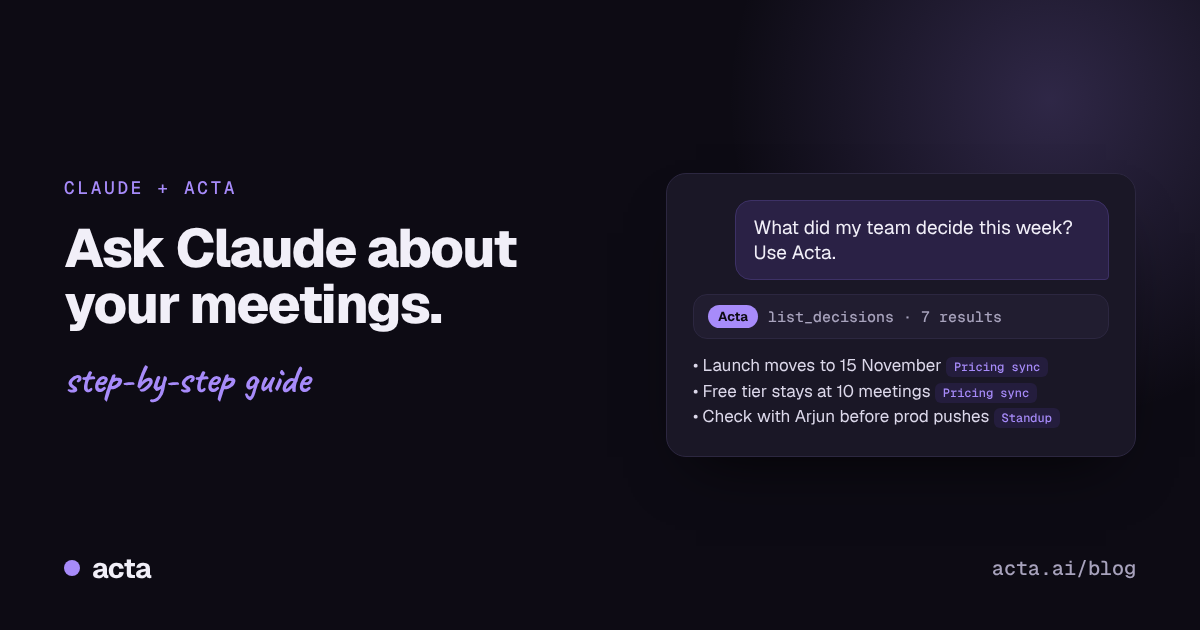
Quick answer: To use Claude with your meeting notes, connect a meeting tool that supports Claude connectors, which are built on the Model Context Protocol (MCP). With Acta, add the Acta connector in Claude's settings, sign in, and ask questions like "What did we decide this week?" Claude answers from your real meetings, links back to each one, and can update action items when you ask.
A lot of people already have Claude open all day. They draft emails in it, plan projects in it and think out loud in it.
But until recently, Claude didn't know anything about your meetings. You'd copy and paste a summary in, ask a question, then do it all again tomorrow. It worked, but it was clumsy, and the context was always incomplete. Connectors fix that: Claude can now read from the tools you use, with your permission, and answer with real information.
What is a Claude connector (MCP)?
A connector lets Claude talk to another app. It's built on the Model Context Protocol (MCP), an open standard for connecting AI assistants to tools and data.
In plain terms: once you connect Acta, Claude can look up your meetings, decisions and action items when your question needs them. You don't paste anything. You just ask. A few things worth knowing:
- You sign in with your own account. Claude only sees what you can see in Acta.
- Claude asks before using a tool the first time, and you can choose to always allow it.
- Changes are visible. If Claude updates something in Acta for you, it's labelled as done through Claude, and you can undo it.
What can Claude do with your meetings through Acta?
Here's what the Acta connector for Claude and ChatGPT supports today:

Every answer includes links back to the meeting in Acta, so you can check the source.
How do you connect Acta to Claude?
- Make sure you have an Acta account with at least one recorded meeting. If not, start free and let Acta join your next call.
- Open Claude and go to Settings → Connectors.
- Find Acta in the connector directory and click Connect. If Acta isn't listed for you yet, choose Add custom connector, name it Acta and paste the server URL from your Acta settings.
- Sign in to Acta when the sign-in window opens, and click Allow.
- Start a new chat and make sure Acta is turned on in the tools menu.
- Ask your first question. Try: "What did my team decide this week? Use Acta."
The first time Claude uses an Acta tool, it'll ask for permission. Choose Always allow for the read-only tools if you'd rather not be asked each time.
How do people actually use Claude with their meetings?
- The Monday catch-up. "What did we decide last week, and what's still open?" One question, and you start the week knowing where things stand.
- Before a call. "Prep me for my call with Acme. What did we promise them last time?" Claude pulls the previous meeting and the open items.
- Writing follow-ups. "Draft a follow-up email to Ravi covering the action items from today's pricing sync." Claude gets the items from Acta and writes the email.
- Closing the loop. "I've sent the deck. Mark that item done and comment 'Sent to sales'." Done, without opening another app.
- Combining tools. If you've connected other tools to Claude, such as your calendar or project tracker, you can ask questions that span them: "Which action items from this week's meetings don't have a ticket yet?"
For more on this workflow, see our short answer on asking ChatGPT or Claude about your meetings, and how to track action items across meetings.
How do you get better answers from Claude?
- Say "use Acta" when your question could be about something other than meetings. It tells Claude where to look.
- Name people and meetings. "What did Priya commit to in the design review?" works better than "What did she say?"
- Give a time frame. "This week," "since August" or "in the last three standups."
- Check the links on anything important before acting on it.
Is it secure to connect Claude to your meetings?
The connector uses your own Acta sign-in, so Claude only reaches meetings you already have access to in your Acta dashboard. Acta treats meeting content as information, not instructions, so text inside a transcript can't tell Claude to do something. Any change Claude makes in Acta is labelled and can be undone. Read more on our security page.
Frequently asked questions
Can Claude read my meeting notes?
Yes, if you connect a meeting tool to Claude. With the Acta connector, Claude can read your meeting summaries, transcripts, decisions and action items after you sign in and allow access.
What is MCP?
MCP (Model Context Protocol) is an open standard that lets AI assistants like Claude connect to other apps and data. Acta's Claude connector is built on it.
Can Claude update my action items?
Yes, when you ask it to. Through Acta, Claude can mark action items done, add comments and change a decision's status. Each change is labelled as made through Claude and can be undone in Acta.
Do I need a paid Claude plan to use connectors?
It depends on Claude's current plans and settings. Check Claude's help pages for which plans support connectors.
Will Claude see meetings I don't have access to?
No. Claude only sees what you can see in your own Acta dashboard.
Bring your meetings into Claude: get started with Acta, then connect it in Claude's settings.